











Emoji Aren’t Just For Fun: Using Emoji in Business Documents
Blog: Blog | Process Street | Compliance Operations Platform

Emoji aren’t just for fun. Using emoji in business documents means pairing familiar visual symbols with plain-text labels so readers can scan ownership, task type, timing, and status faster. In a procedure, policy, checklist, or recurring workflow, the symbol acts as a visual cue. The text beside it supplies the precise meaning.
That combination matters. Research on how people scan web content supports clear visual structure, while research on cognitive fluency shows that easier processing can influence judgments. Emoji can help with scanning, but they should never replace an instruction, owner name, due date, or status label.
Internal business documents have a reputation for being stuffy, dull, and not optimized for human beings to read. They often become incomprehensible, unappealing walls of text even though there is no shortage of data on the importance of visuals and how to write content that gets read. Marketing communications, on the other hand, are much more likely to be optimized for readability. Taking a leaf out of the marketing playbook does not mean turning an SOP into advertising. It means turning dry text-walls into digestible, scannable, and memorable documents. If the SOP looks unappealing and hard to execute, participants may be less willing to actually read the documents and follow standard procedure. Eye-catching emoji can be part of the cure, as long as the process stays clear. The goal is practical uses for emoji outside the realms of teenagers on their phones: business documents that are unique, useful, and fun.
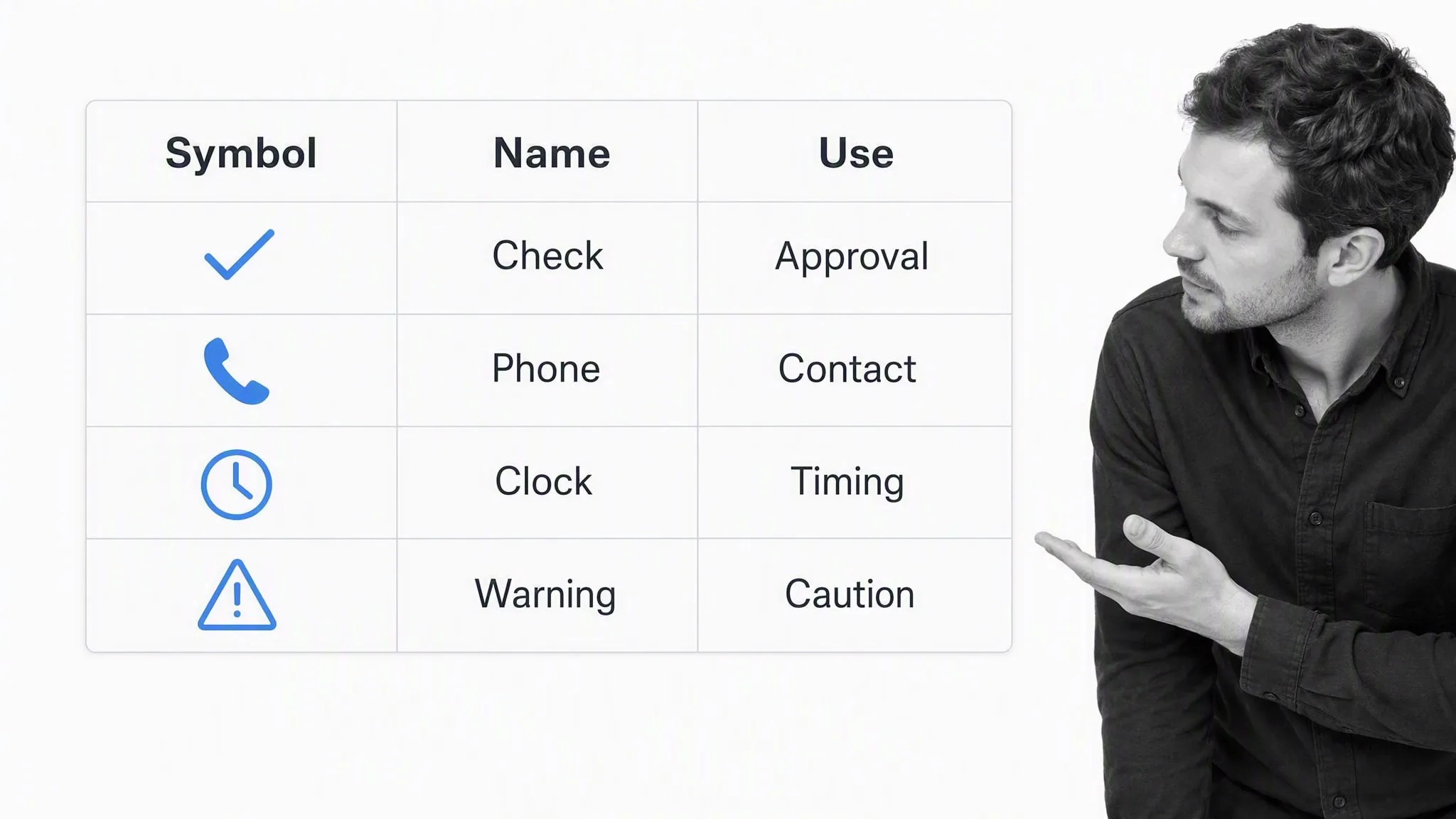
The practical idea is simple: choose a small, stable vocabulary and use it consistently. A check mark can mean approved, a phone can mean call, and a clock can mean time-sensitive. A notification can use the same cue without forcing the reader to decode a decorative string of symbols.
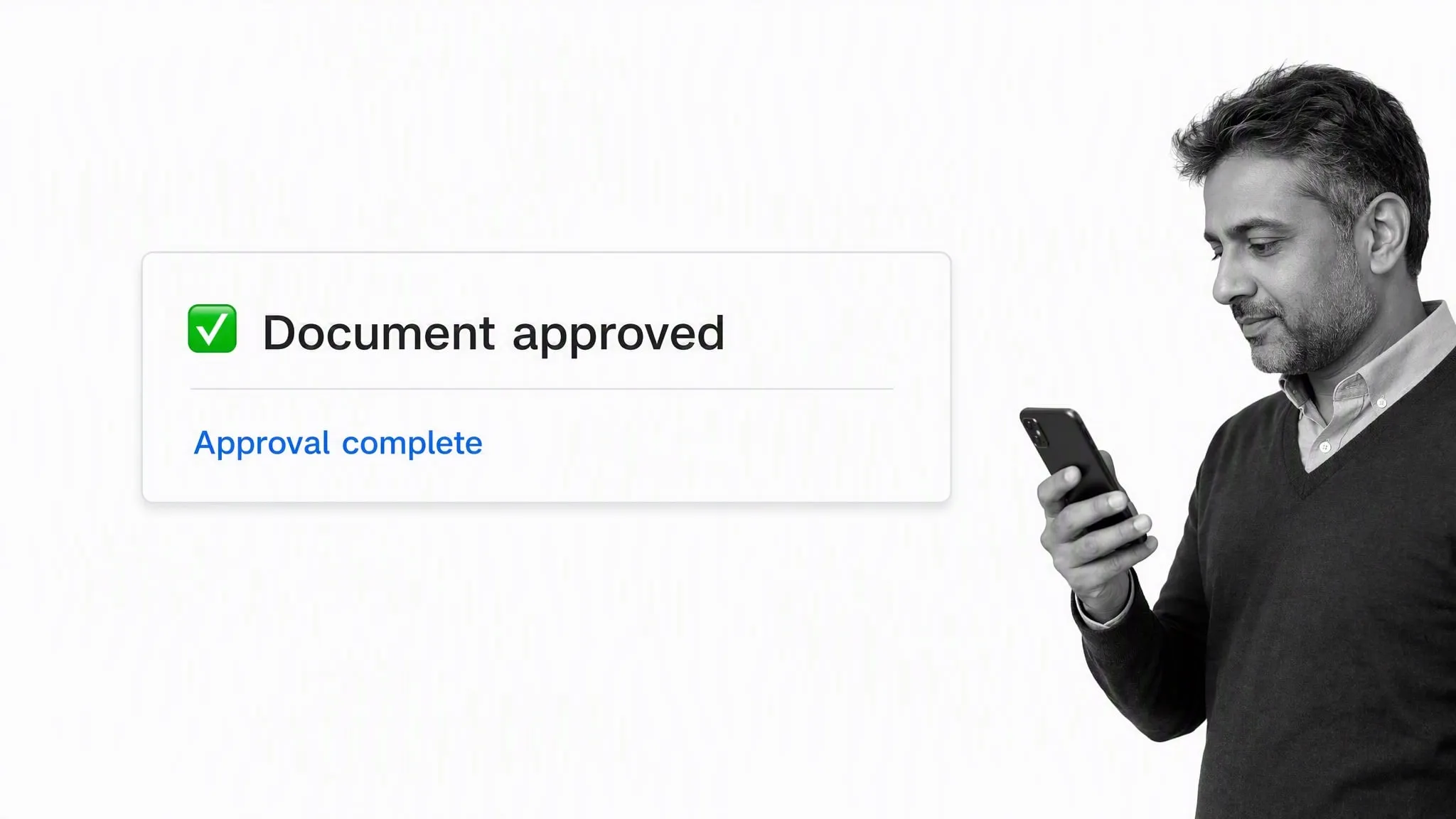
It all started when Vinay noticed how eye-catching emoji are in automated Process Street app emails. That led to the practical question of whether they could make processes clearer, visually appealing, shorter, and more readable. A useful document can borrow those visual cues without copying the casual tone of a message.
Using emoji to show which department is responsible for the task
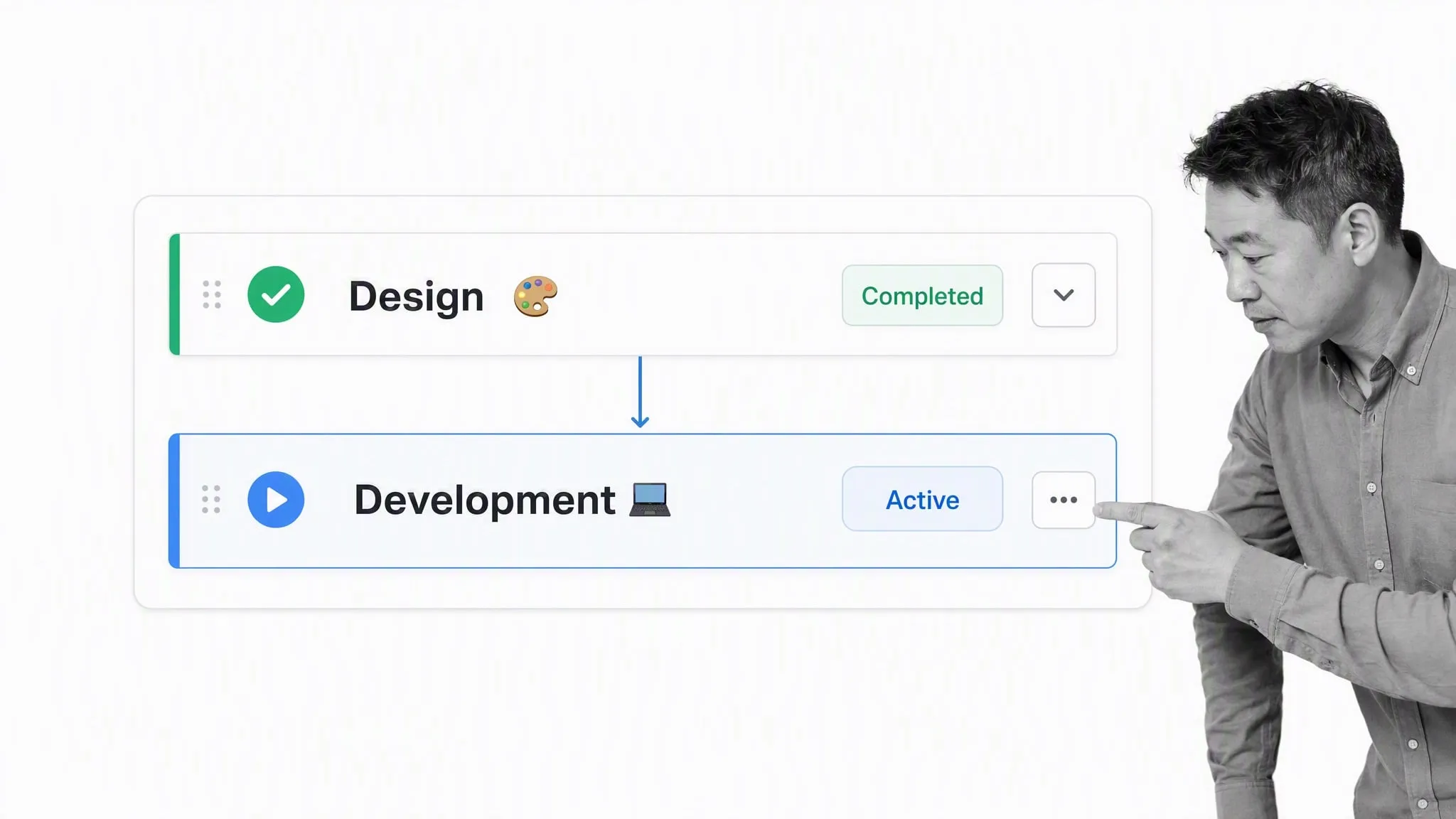
Long procedures often move between departments. A small symbol next to a text label can make those handoffs easier to spot. For example, use 🎨 Design, 💻 Development, 📣 Marketing, 💵 Finance, and 👥 People Operations. The department name remains the source of truth; the emoji creates a second, faster path for recognition.
This works best when each symbol has one meaning across the organization. If 💻 means Development in one workflow and IT Support in another, the cue becomes noise. Document the legend in the process, then reuse the same label and symbol in related procedures.
For inter-departmental processes, such as a blog post process that involves both the marketing team and the design team, emoji can indicate the part of the process handed off to another department. A broader department legend might cover Finance, Marketing, Sales, Development, IT, HR, Design, Support, Logistics, Operations, Legal, and Shipping. At a glance, process participants can get a better idea of which departments are responsible for which tasks.
Using emoji to show types of task
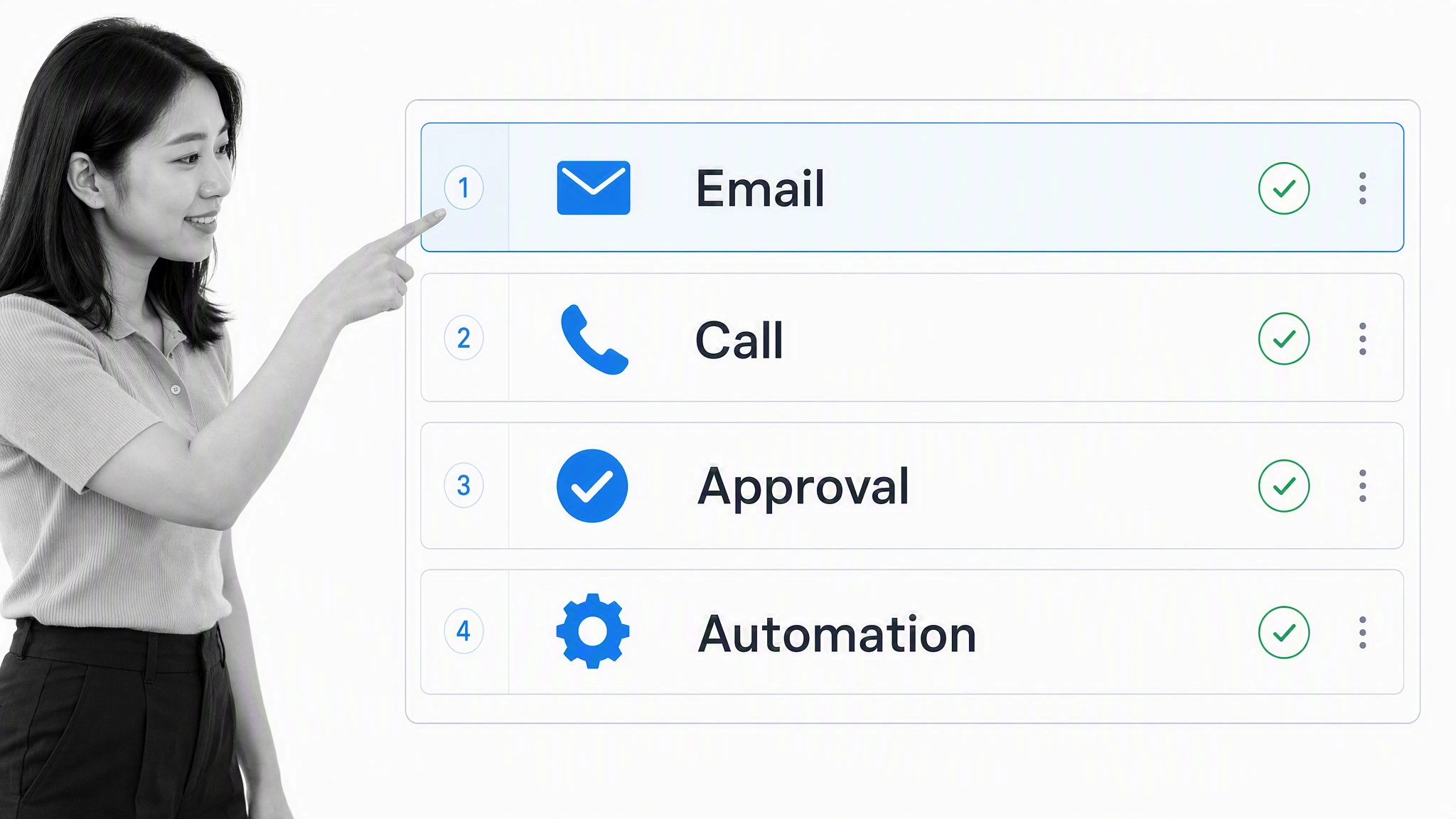
Emoji can also distinguish the kind of action a person needs to take. Common examples include ✉️ Email, 📞 Call, ✅ Approval, 🔎 Review, 📝 Draft, and ⚙️ Automation. In a dense checklist, these markers let a reader separate communication tasks from decisions and system actions at a glance.
- Communication: pair ✉️ or 📞 with the words Email or Call.
- Decision: pair ✅ with Approve, and include the decision criteria.
- Review: pair 🔎 with Review, plus the document or evidence to inspect.
- Automation: pair ⚙️ with Automation, plus what triggers it and what should happen.
Do not use the symbol as the verb. “✅” is ambiguous; “✅ Approve the vendor risk assessment” is actionable. The label also protects meaning when emoji are hidden, announced by assistive technology, or rendered differently on another platform.
The original suggestions drew on common use-cases and BPMN activity types: Email, Phone call, Notify colleague or manager, Approval step, Trigger automation, Manual task, Update records, Update CRM, Create document, Meeting, and Validate or check work. Those categories still describe the activity participants need to do, and they make it clear which checkboxes trigger automations.
More emoji ideas for processes and tasks
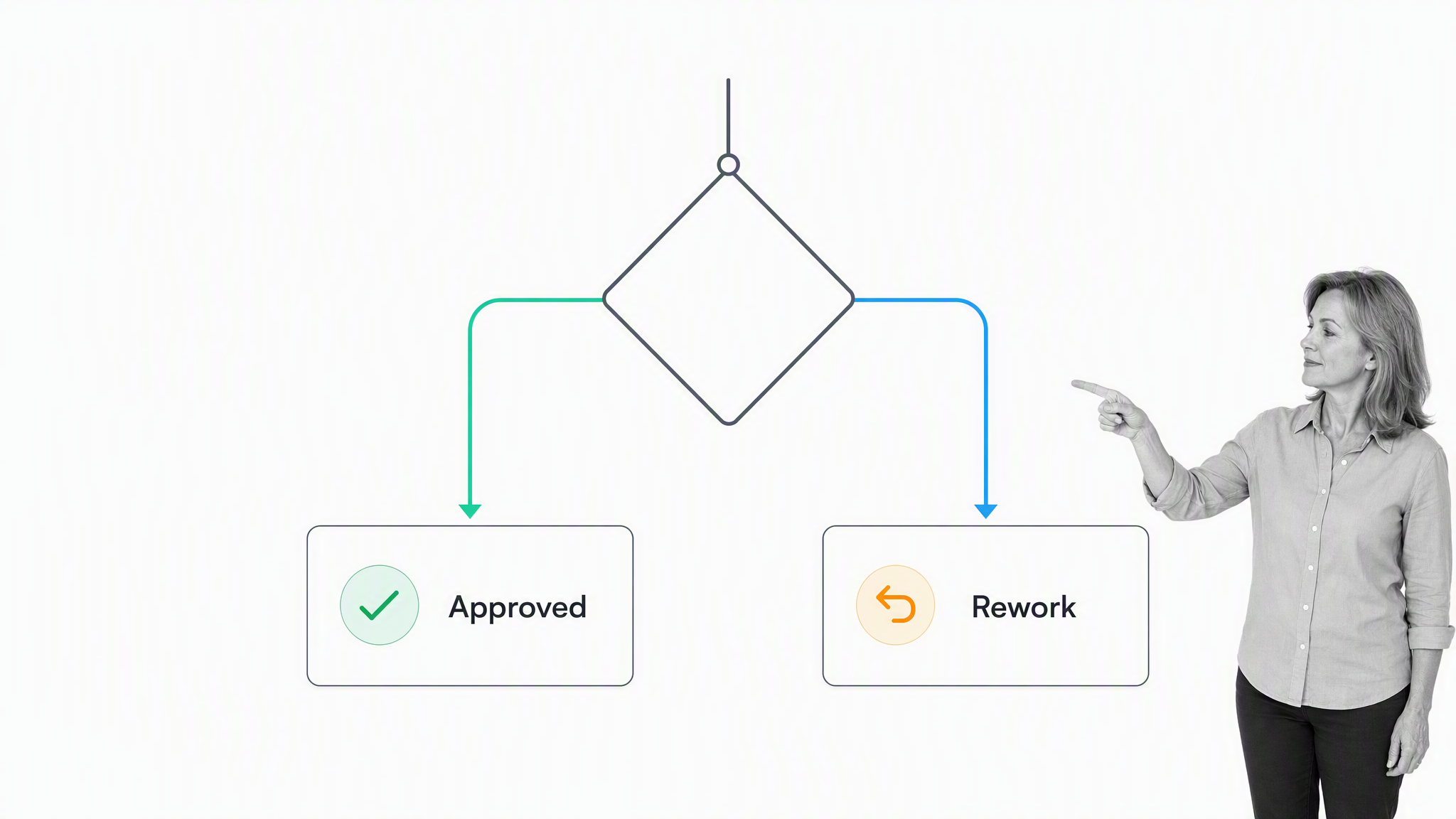
Conditional paths are another useful case. A decision point can use ✅ Approved and ↩️ Rework, but the branch still needs an explicit condition. Write what qualifies as approval, who decides, and where the work goes next. That prevents the visual shortcut from becoming a substitute for process logic.
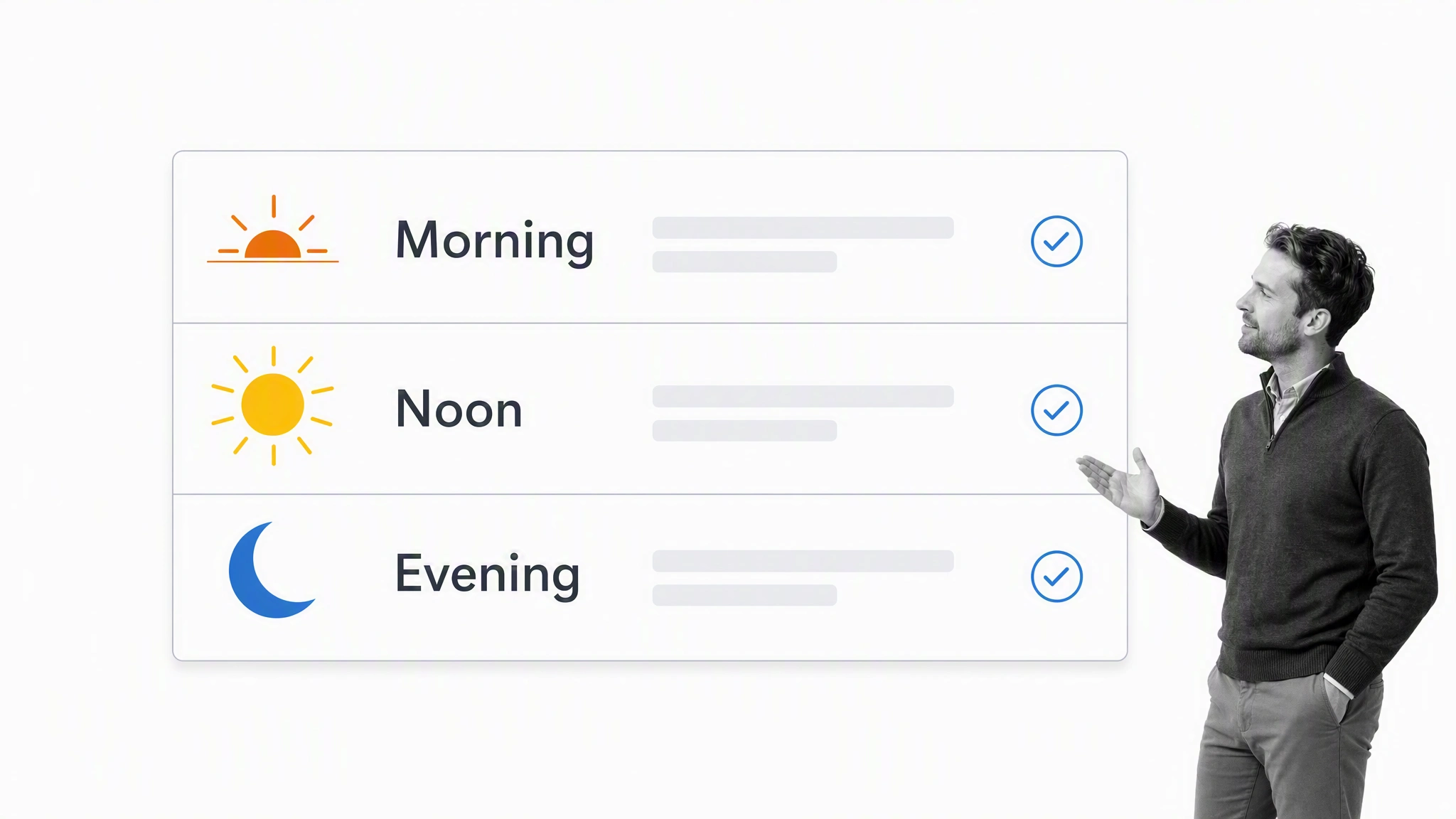
Time cues can help people scan a daily routine: 🌅 Morning, ☀️ Noon, and 🌙 Evening. For operational deadlines, keep the real time in text. “🌅 Morning” is a category; “Due by 9:00 a.m. Eastern” is an instruction.
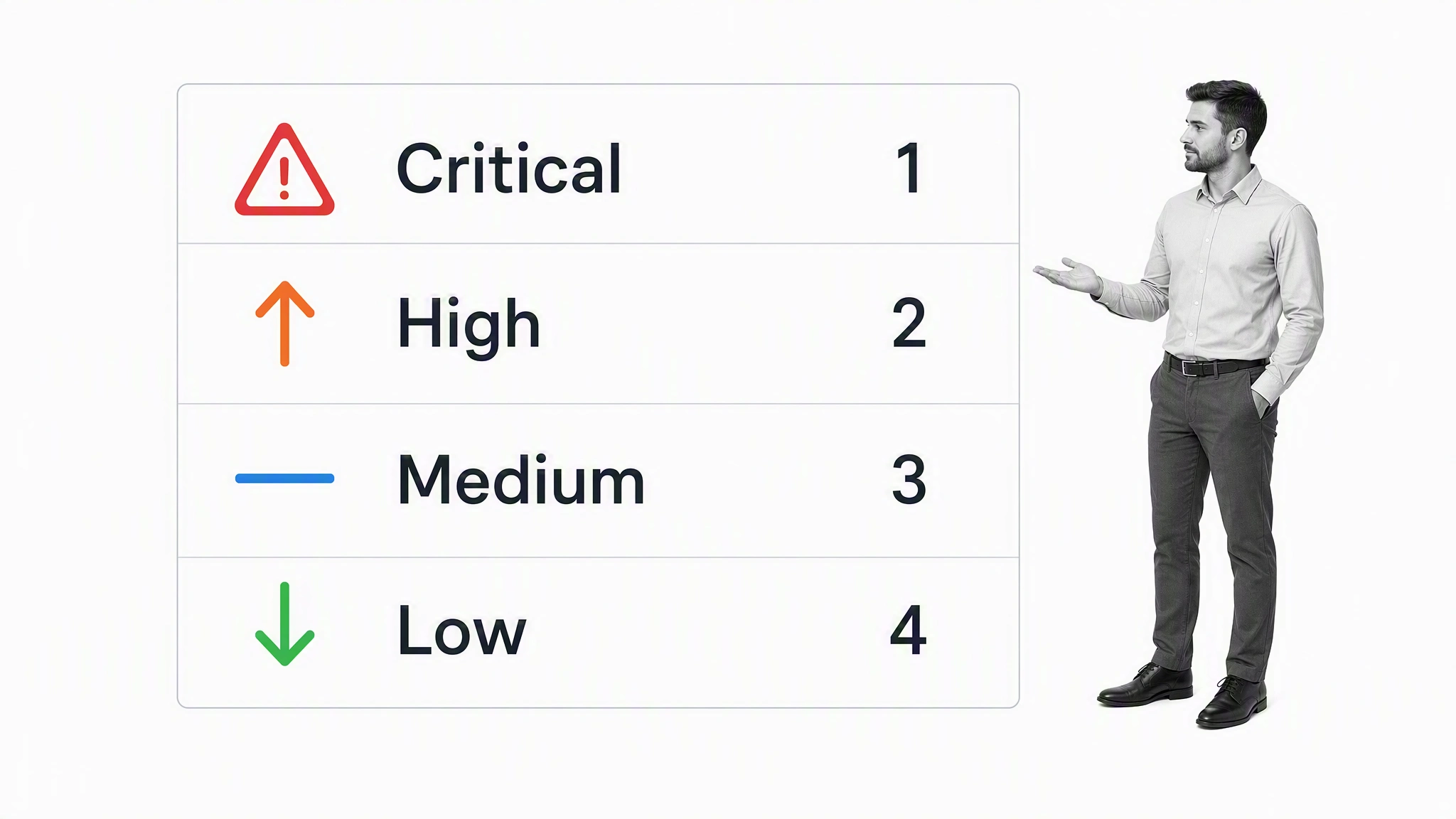
Priority labels deserve the same discipline. A compact scheme such as 🚨 Critical, ⬆️ High, ➡️ Medium, and ⬇️ Low works only when the business defines the response for each level. Spell out who is alerted, the expected response time, and any escalation path.
Other reliable mappings include 📎 Attachment, 🔒 Restricted, 🧾 Evidence, 🧪 Test, 🗓️ Schedule, and ⚠️ Caution. Start with a short legend instead of assigning a symbol to every line. Too many visual markers compete for attention and make the document harder to scan.
Miscellaneous ideas can cover what happens inside processes without turning every task into a symbol. Color-coded diamonds may represent logical branches, including Start logical branch, Path A tasks, and Path B tasks. Sunrise, sunset, and clock emoji can mark a morning task, evening task, or noon task. Numbered cues can indicate Highest priority, Priority 2, Priority 3, and Priority 4 when a step-by-step process genuinely needs priority levels.
The first forays into business document templates with emoji
Visual business documents are not new. Presentation research and practice have long encouraged teams to turn dense information into structures that are easier to follow. LivePlan summarizes research on presenting data visually, and early emoji-based templates explored how that same principle might work in everyday operational documents.
Growth Hacks Emojipoint Template
One playful example was Kurt Braget’s PILLARS framework. Its categories were Place, Idea, Labor, Link, Audience, Results, and Spend. The original template used emoji to make each category memorable, then placed the real notes beneath it. The useful lesson is not the novelty of an “emojipoint” document. It is the way a stable visual legend gives repeated information a recognizable shape.
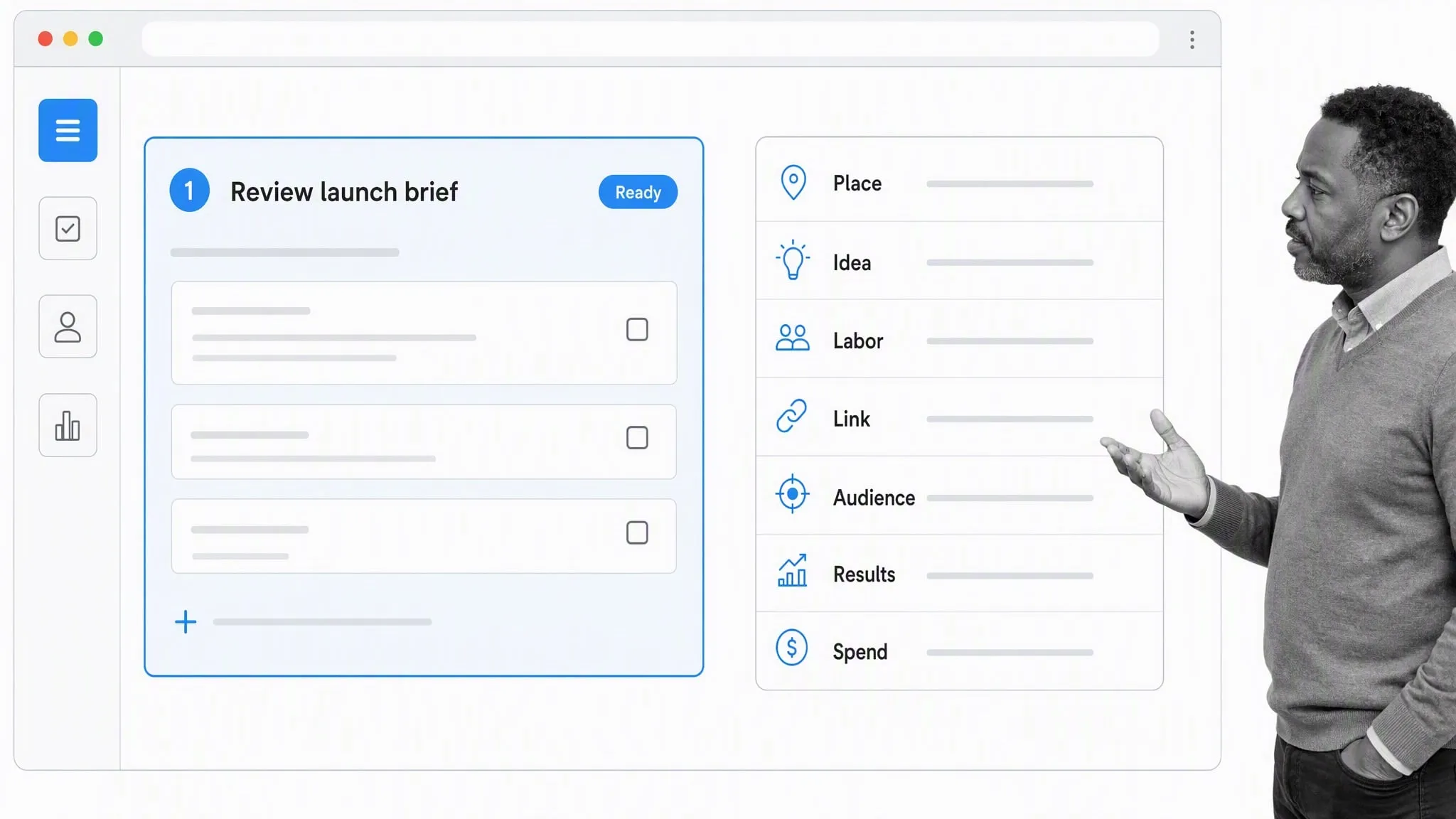
For example, 📍 Place can identify where an experiment runs, 💡 Idea can state the hypothesis, 👷 Labor can name the owner, 🔗 Link can point to the source, 👥 Audience can define the segment, 📈 Results can record the outcome, and 💰 Spend can capture the budget. Keep the written field names even when the team knows the legend.
In the source framework, Place meant what channel the growth hack takes place in; Idea meant what the idea is for the growth hacking experiment; Labor tracked the actual work put into the hack; Link showed how the hack connected to the product; Audience identified who it was directed at; Results recorded what came out of it; and Spend captured how much money, time, and resources were used.
The Awesome Idea Template
Braget later shared The Awesome Idea Template, another experiment in structuring ideas with symbols. These examples are historical, but the design rule remains useful: the visual system should clarify the information architecture, not compete with it.
Its fields included the name of the idea, a short elevator-pitch description, the problem, the proposed solution, the technology or materials, how it makes money, competitors, estimated cost, time to get a quick draft up, bad things about the idea, good things about the idea, how big the market is, and who loves it. Nested emojipoints showed supporting details beneath each field.
The same principle applies to standard operating procedures. Marie-Claire Ross has estimated that common SOP problems include documents being difficult to find, hard to understand, or out of date. Her five SOP mistakes are a reminder that visual polish cannot compensate for poor ownership, access, or maintenance.
How to use emoji on desktop
Modern desktop operating systems include built-in character pickers, so browser extensions and standalone emoji utilities are usually unnecessary. The exact shortcut can change with the operating system, keyboard, and application.
Using the emoji keyboard on Mac
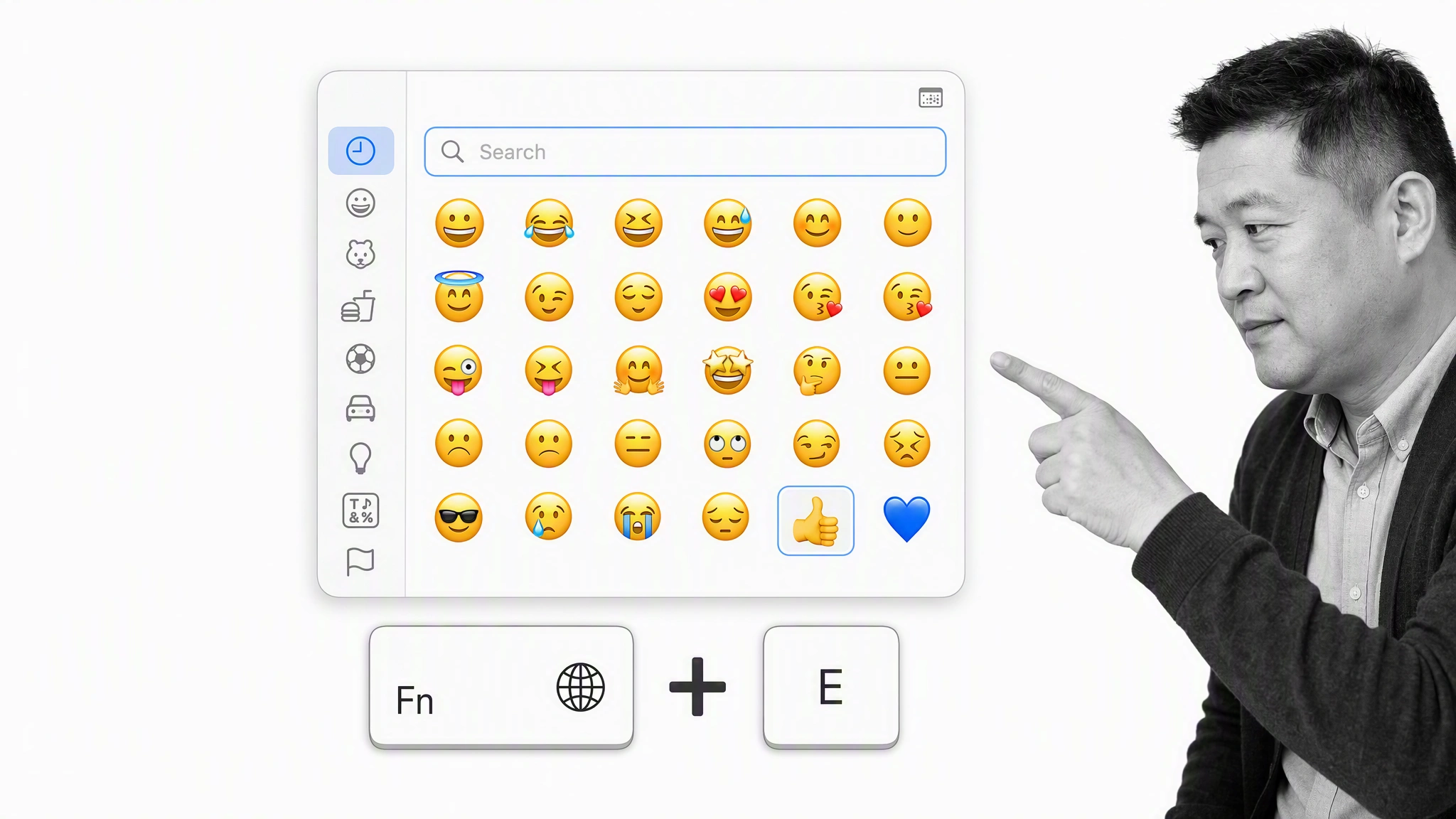
On current versions of macOS, press the Fn or Globe key and E to open the emoji and symbol viewer. You can also choose Edit, then Emoji & Symbols in many apps. Apple documents both routes in its guide to using emoji and symbols on Mac.
Using the emoji keyboard on Windows
On Windows, place the cursor where you want the symbol and press the Windows key plus period. The emoji panel opens without leaving the document. Microsoft includes the shortcut in its official Windows keyboard tips.
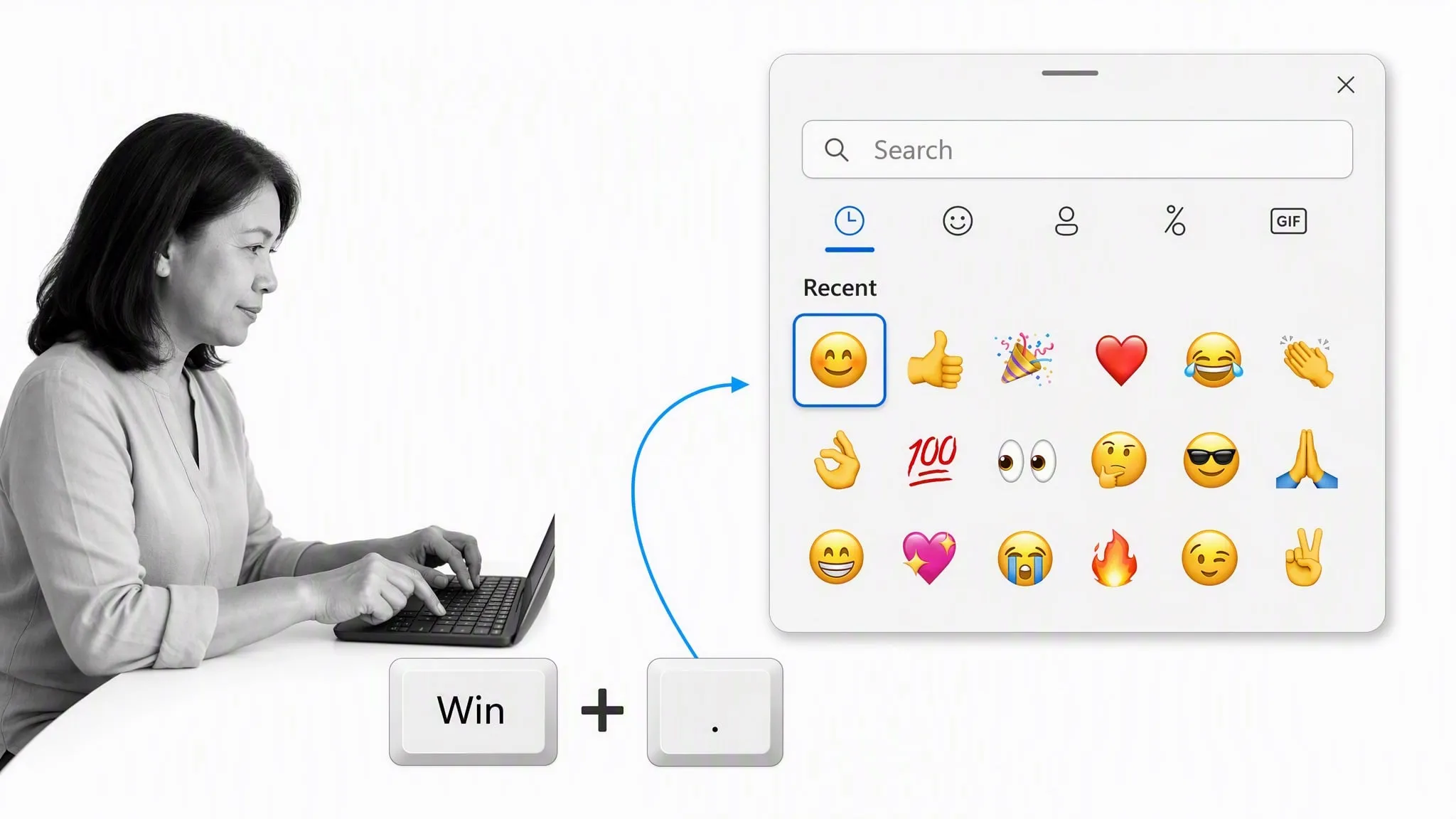
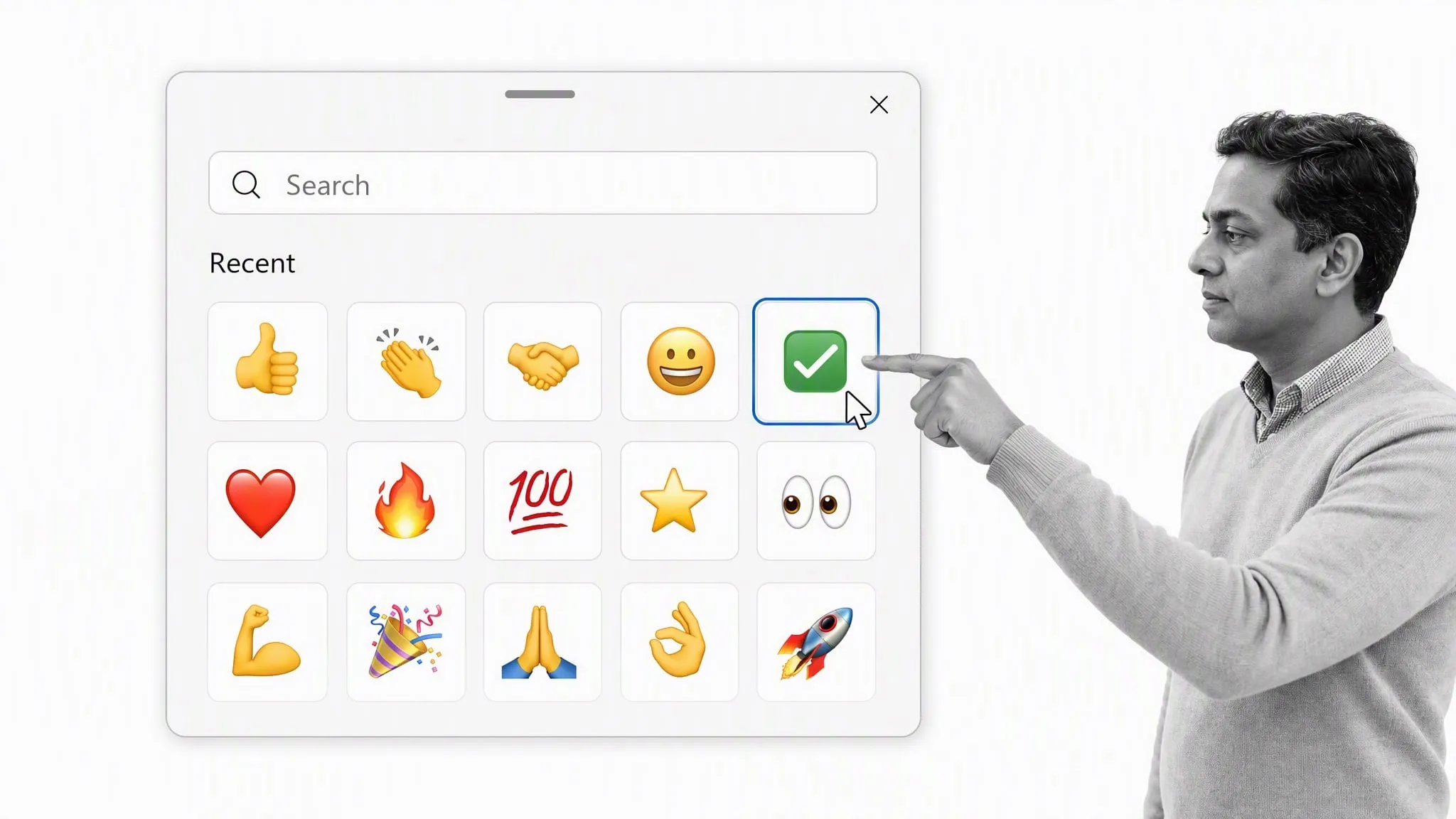
Search or browse in the panel, then select the symbol. After inserting it, type the accompanying label. This is the important accessibility step: “✅ Approved” communicates more reliably than a standalone check mark.
Using emoji on Linux or other systems
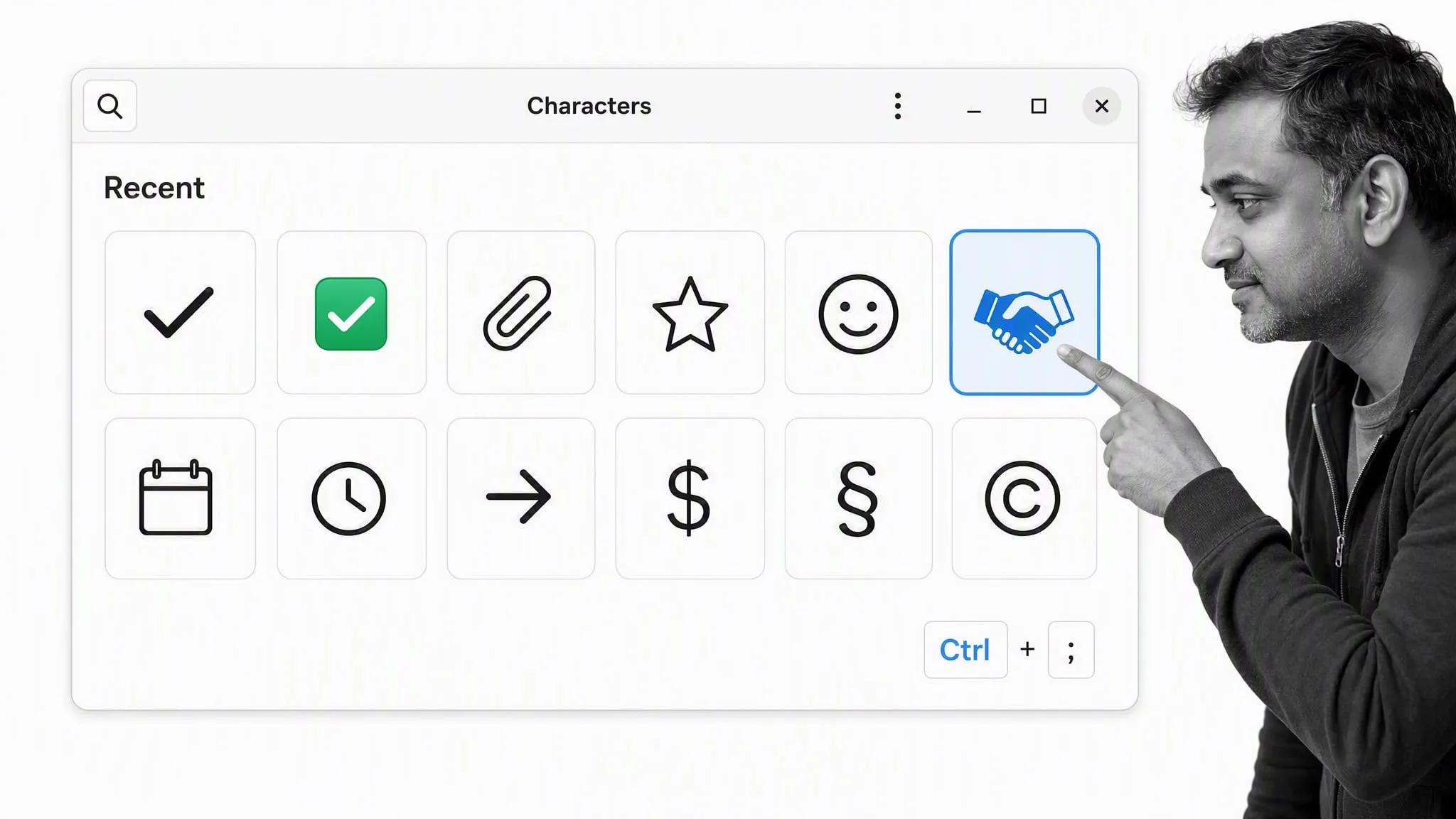
Linux behavior varies by distribution and desktop environment. Ubuntu documents a Characters application and, in supported text fields, a Ctrl plus semicolon shortcut for choosing emoji. See Ubuntu’s guide to typing special characters. When a system picker is unavailable, copy the symbol from a trusted Unicode reference and paste it into the document.
Notes on how emoji display differently on different platforms
Emoji are encoded as Unicode characters, but Apple, Microsoft, Google, and other vendors draw their own artwork. The same code point can look flatter, rounder, more detailed, or more emotional depending on the platform. A symbol that feels neutral on one screen may look stronger on another.
Because the way they’re displayed on different platforms can differ quite significantly, take a look at the full chart if you’re unsure and think there could be a communications breakdown.
Apple, Google, Samsung, and Microsoft each publish their own interpretation, so the artwork can change even when the underlying character does not.
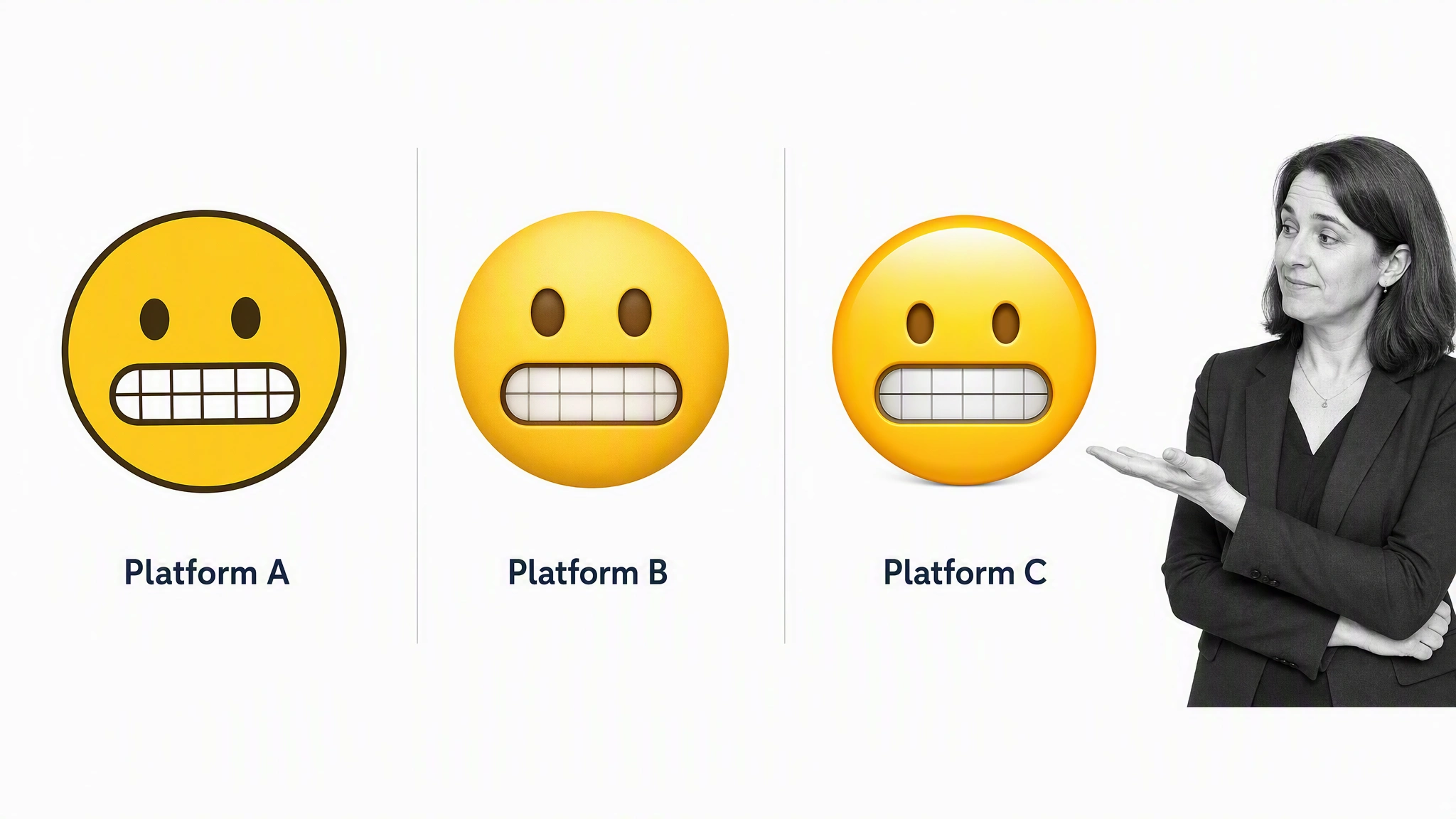
Test important documents on the platforms your audience uses. Avoid relying on a subtle facial expression, color, or orientation to carry business meaning. The Unicode full emoji list is useful for names and code points, while Emojipedia shows how many symbols vary across vendors.
Accessibility requires more than cross-platform testing. W3C guidance recommends providing text alternatives when an emoji image conveys meaning, and Salesforce’s accessibility guidance warns against long emoji strings because screen readers may announce every symbol name. In normal prose, keep the emoji next to a clear text label, limit repetition, and never encode a critical status with color or emoji alone. The current systematic review of emojis in digital communication also supports a context-dependent view rather than a blanket claim that emoji always improve understanding.
Final words on the use of emoji in business documents
Emoji can make a business document easier to scan when the visual vocabulary is small, stable, and paired with precise language. They are most useful for recurring categories such as department, task type, timing, priority, and status. They are least useful when they become decoration or force readers to guess.
There is no formal emoji standard for business documents. Unicode standardizes characters and emoji behavior through Unicode Technical Standard #51, while formal process notation such as BPMN 2.0.2 serves a different purpose. Treat your emoji legend as an internal writing convention, document it, test it, and revise it when teams misread it.
Process Street is a single Compliance Operations Platform. Its Docs and Ops capability areas, plus built-in AI, let teams document standards, run recurring workflows, assign owners, collect approvals and evidence, and improve execution over time. Learn how business process management software connects clear documentation with repeatable operations.
The post Emoji Aren’t Just For Fun: Using Emoji in Business Documents first appeared on Process Street | Compliance Operations Platform.