











Best Video Conferencing App: Skype vs Hangouts vs GoToMeeting vs Zoom vs Join.me vs Appear.in
Blog: Blog | Process Street | Compliance Operations Platform

Businesses around the world were already spending billions of dollars on video conferencing apps back in 2016, and that market has grown enormously since.
After years of waiting for video calls to take off, we’re finally living in the sci-fi future of face to face calls.
This isn’t new, of course. AT&T developed the earliest form of video call in 1927 and most of us have been using Skype or similar for years.
The difference now is that we have a lot of options on the market for video calling and many of them are geared specifically for video conferencing, making the video call a staple of modern business.
In this article, we’re going to break down the best video conferencing app for your business and give you the information necessary for you to pick one which suits you.
We’ll look at 6 key tools, and because the market has moved fast we follow each one to where it lives today:
- Zoom, now Zoom Workplace
- Join.me, folded into GoTo
- Skype for Business, retired and succeeded by Microsoft Teams
- GoToMeeting, now GoTo Meeting
- Appear.in, rebranded as Whereby
- Google Hangouts, replaced by Google Meet
Why use video conferences in your business?
The first experience I had with video calling was in 2004 with the release of the Amstrad E3 Superphone.
This futuristic device was a landline telephone with a low-resolution screen attached and a somewhat difficult to manage keyboard. You could use this phone to send emails, texts, make video calls, and even browse the web. Having this phone in the home felt like the first step to a brighter tomorrow.
Sadly, the E3 proved to be a bit of a flop as people’s behavior shifted toward computer-first interaction with technology. Not enough people bought the product, so there were very few people you could actually video call. The product has not aged well.

Despite this, modern video calling has overcome many of these problems. Bandwidth nowadays is powerful enough to shoot beautiful high-quality video from one PC to another without experiencing too many problems. Laptops, tablets, and phones are very common, overcoming the fixed corded limitations of the E3, meaning you can easily hop into a different room for your call. Everyone has access to video chats if they choose to, so there’s no barrier to entry for the vast majority of people.
Plus, with your computer you’re calling from your workspace where all your information is stored, so a video call doesn’t necessarily interrupt your workflows, it can assist them. Or through features like screensharing and other specially made collaboration functionalities, video calling can help you get more done as a team.
But don’t just trust my postulating. Check out the stats!
Studies of remote and hybrid teams consistently find that:
- 89% of remote employees say video calling helps them feel more connected to their colleagues.
- 76% of people use video collaboration to work remotely and, of those, 75% experience increased productivity and an improved work-life balance.
- 82% of video users are less likely to multi-task on a video call than an audio one.
- 89% agree that video calling reduces time to complete projects or tasks.
- 90% say video makes it easier to get their point across.
- 98% state that video calls help with relationship building both inside and outside the company.
I think these stats speak for themselves.
The recurring themes seem to be that video calling helps collaboration, problem-solving, engagement and productivity, and building company culture.
The idea for this article didn’t just come from nowhere. The various teams within Process Street have moved from their old service to a new service for holding meetings. This change was sparked by pain points we found within the sales team.
Given that most of our teams only have a few internal meetings a week, there isn’t a great need for the most amazing service. As long as it works, we’re happy. However, for the sales team, they’re having 30 meetings a day with clients who are used to using a broad range of different software.
When a video conferencing service struggles with quality, ease of access, or limited functionality it makes a real impact on our client relations. You don’t want to have to walk a client through installing software just to speak with you. Equally, you want something professional with a good connection to demonstrate that you’re a company which can be trusted.
This was a pain point we noticed which needed to be addressed.
So, with this in mind, let’s get testing!
Quick overview:
Before we get into the detail, here is the short version: Zoom (now Zoom Workplace) is the all round heavyweight with the most generous free tier, Google Meet (the successor to Google Hangouts) is ideal if you live in Google Workspace, Microsoft Teams (the successor to Skype for Business) is the natural pick on Microsoft 365, Whereby (formerly Appear.in) is the lightweight one link option for quick client calls, and GoTo Meeting (formerly GoToMeeting, and now the home of Join.me) is the established corporate option.
How easy was it to get set up?
Zoom
Not too much difficulty here.
I had to download the program to my computer in order to participate in the calls. That adds an element of friction if you’re having a one-off call with someone outside your team, or the first call with anyone who doesn’t already have Zoom, really. A browser join softens that today.
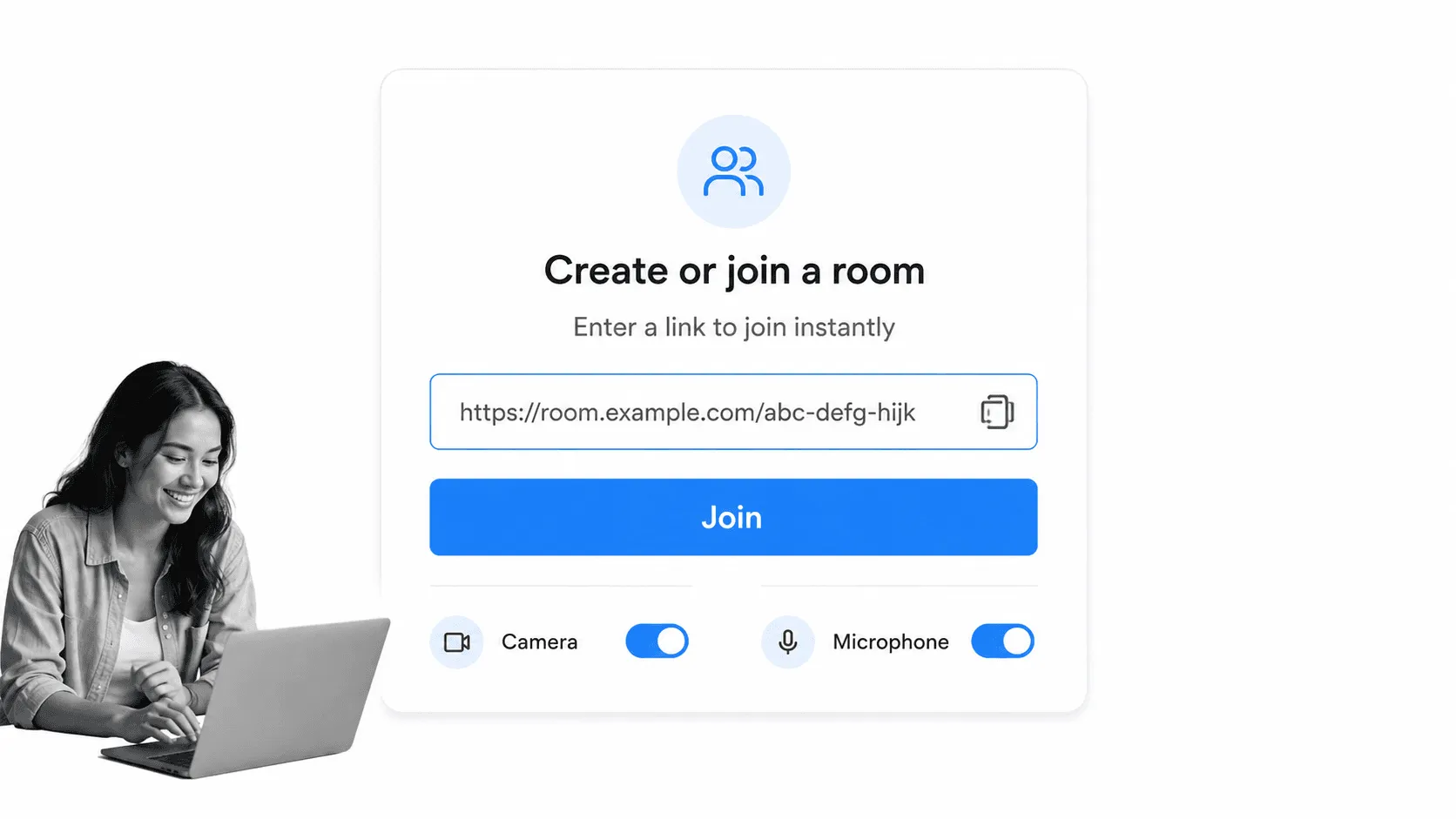
As a host, it’s very easy to start a meeting. You can just set up a new room. Then you shoot the link to the meeting to someone and they follow it.
It’s a pretty easy process all round at that point. Maybe takes 20 seconds from clicking the link to joining the meeting while you wait for the program to start up and sort itself out.
Added bonus: mobile apps on Android and iOS. Not bad. Not bad at all.
The UX designer kept their focus. 8/10
Join.me
I wasn’t a massive fan of the setup experience.
I felt pretty confused while going through most of the process. I ended up starting a trial for the premium account as there didn’t seem to be an obvious option for the free one. I had to download the program in order to use the system. Though, you can see why many of these platforms want you to do that, since the more complex functionalities, such as remote control over the host’s workspace, couldn’t be achieved directly through the browser.
You can invite other people into meetings without them having to download the program, so that’s good. However, the meetings, or presentations, as that’s what Join.me feels more geared to, would then be one way. If you want to hand over annotation tools, remote access, and other advanced features then you need to download the software.
You can create a room with a custom name, which I like. Then anyone who follows that link can jump into your room. This is a system used by a few others on here, and I like it. Join.me has since been folded into GoTo, so today that setup flow lives inside GoTo Meeting rather than a standalone product.
The UI/UX left me a little confused at first but I think I got the hang of it as it went on. Not hugely intuitive.
It joins the rest with a lower score. 5/10
Skype for Business
Skype had a slight advantage for setting up as most people already had it installed.
That has to count in its favor. For those who didn’t have it installed, it was not the worst process in the world but it was a bit of a pain. More friction than some of the other options: Zoom, Appear.in, and Google Hangouts.
Once you had Skype it was pretty simple. Your Skype ID was like a phone number and you just called someone’s Skype ID. Not too complicated. However, you had to connect with each of these people on Skype like it’s a social network. My Skype contact list is filled with people I spoke to once because of that thing at that place, you know?
Microsoft retired Skype for Business Online in 2021 and closed consumer Skype in 2025, and Microsoft Teams is now the successor. Teams sets up in a click if your company is on Microsoft 365, since you are effectively already signed in, and for guests outside your organization a browser join keeps things simple rather than forcing an install.
Neither micro nor soft, but the successor is a step up. 6/10
GoToMeeting
Don’t get me started.
I ended up downloading the program twice. For a moment, I was even a little worried I was downloading some kind of virus, given the strange filename and forceful process. Ben had the same experience. I was still fairly confused at the point when we gave up on GoToMeeting, but I was particularly confused at the beginning.
There were so many boxes everywhere that I didn’t know what I was meant to be using or clicking or moving or, wait a second, there’s no minimize button on that window.
Whole thing was a mess. Starting up GoToMeeting gave me flashbacks of an old room filled with wires and an appalling lack of adherence to fire safety regulations.
Not great for me to set up, but Ben was able to access the meeting from within the browser, which had a significantly better UI/UX. However, if I wanted to transfer hosting duties to Ben so he could show me his screen and use the advanced features then he had to download it too. The current GoTo Meeting is tidier than that memory, yet it still carries more setup overhead than the one click browser tools.
It just didn’t make sense to me. No pun for you. 3/10
Appear.in
Let’s be clear: Appear.in smashes it out of the park in terms of ease of access and use, and its successor Whereby keeps that promise.
That’s partly because it’s a slightly more limited product; it isn’t designed to give you every feature under the sun. It is a lightweight video chat tool for speed and simplicity.
I didn’t even have to make an account to start a video call. I only had to make an account when I wanted to lock access to the video call.
If I’d wanted to hop on a super quick chat with a client I could have taken the following process:
- Go to Whereby
- Type a URL which hasn’t been previously chosen
- Click create meeting
- Send that link to my client
Boom. You’re both on a video call. And that’s without anyone having an account or a Slack integration to launch it from or any of that. It makes it super easy. It works in mobile browsers and through native apps too. Same simple style.
They’ll be Appearing.in my browser more often. 10/10
Google Hangouts
You’re probably familiar with Hangouts, much like you’re familiar with Skype.
There was a good chance you already had a Google account, which already meant you could host meetings through Hangouts. Even pals of yours without Google accounts could join in the video chats with almost all the functionalities still present.
Hangouts felt to me like the video call solution for the avid emailer. Everything was negotiated through the emails and your contacts list through email became your contacts for Hangouts. There were a lot of Skype parallels in ways if you chose to see them.
Consumer Hangouts was shut down in 2022, and Google Meet is the video successor. Meet is about as easy as it gets: if you have a Google account you can host a meeting, and guests can join from a browser with no install. The old requirement to have an admin enable it, which used to trip up teams on Google Apps for Work, now Google Workspace, is gone.
Hasn’t been evil. 9/10.
Does it feel professional and high quality?
Zoom
As difficult as it is to compare quality between the different platforms without getting all technical, Zoom feels like it has a high level of quality.
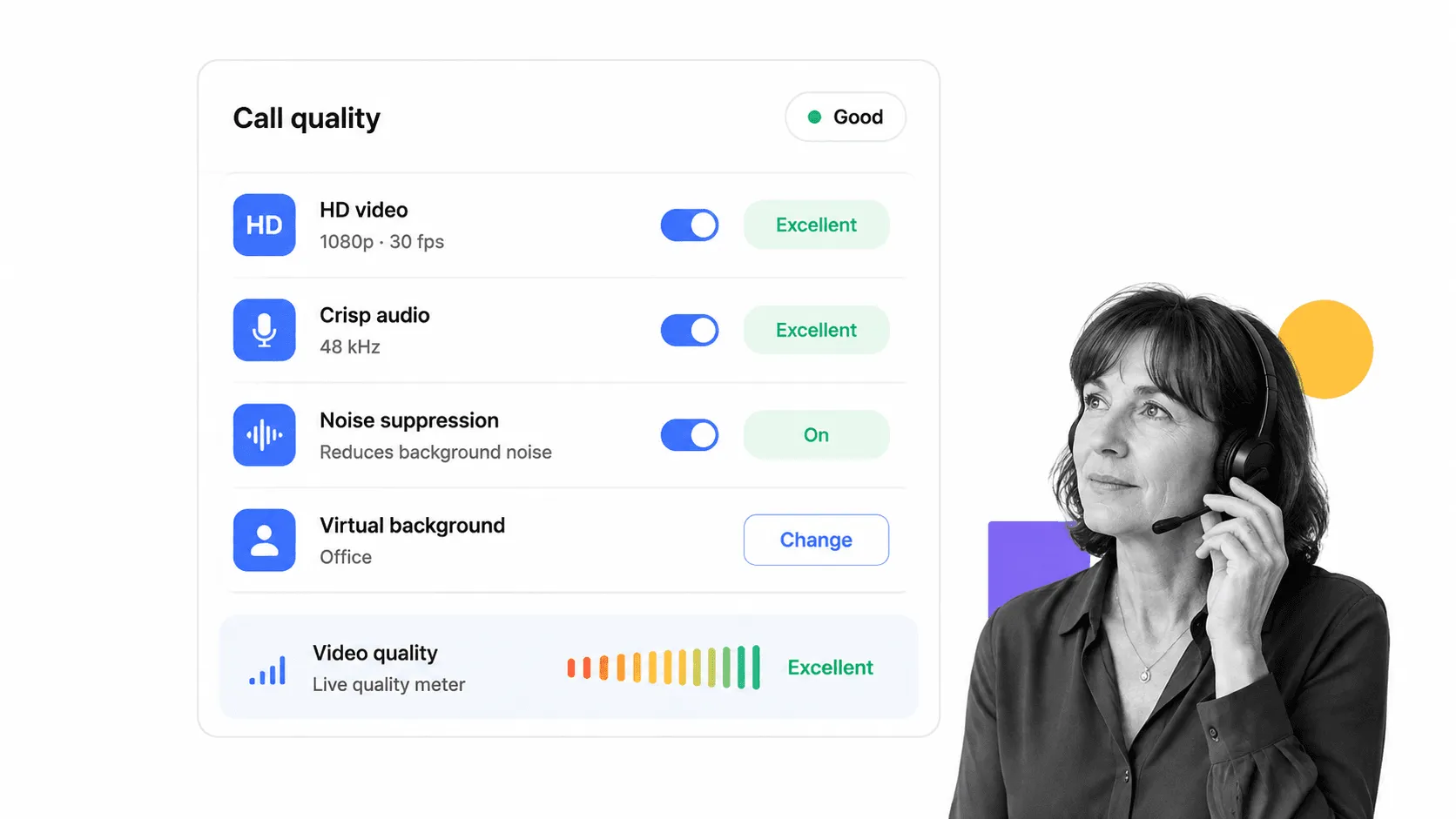
The audio quality, in particular, stands out with Zoom as being crisp and clear. The UI for Zoom is sharp, smooth, and professional. There would be nothing embarrassing or awkward about introducing a client to the software. Zoom Workplace has since grown into a full platform with team chat, whiteboard, and an AI Companion that writes up your notes.
Zoom zips forward. 9/10
Join.me
To be fair to Join.me, we should respect what their core service was. Their core service was to allow collaboration in meetings via video.
As such, you’ll find that the screensharing quality in Join.me was comfortably ahead of the pack. They’d really primed their service to deliver on this feature, given that their emphasis was on working on a single screen from across a distributed team.
The UI was professional and looked fine, but it didn’t feel very corporate. You might not want a video calling software which shows your disembodied head floating around in a bubble for the duration of the call. That screensharing strength now lives on inside GoTo.
Join for screensharing. 7/10
Skype for Business
It’s a tricky one with Skype.
Some people didn’t think Skype was cool enough and associated it with more professional interactions, whereas others felt it lacked the corporate edge and its bubbly design motifs gave it an air of inoffensive family friendly fun. Still, Skype was generally considered professional enough. Its quality varied, mind.
We used to use Skype at Process Street for our calls. We’re a remote based team so this article hits pretty close to home for us. We switched away from Skype partly due to the slightly lower quality when compared to Zoom and others. Moreover, Skype seemed to push its users into using its chat features when all we wanted was the video call. We already have Slack. Microsoft Teams, its successor, closed that quality gap with HD video, solid audio, background blur, and Copilot summaries.
Not best for business, but Teams fixed a lot of it. 7/10
GoToMeeting
I’ve been a little mean to GoToMeeting so far.
It’s a comprehensive piece of kit which seemingly holds substantial market share. As an invitee to a call, the UX isn’t particularly off-putting and the UI is actually quite professional. It has the drab grays you expect from a stuffy office.
As long as your guest in the call doesn’t require access to the advanced features, needing only to access the call via browser, then GoTo Meeting does have a corporate feel. It is professional and it won’t damage your image. The call quality wasn’t anything to shout home about, though. The image was not as sharp as it could be and I didn’t have a revelation when hearing the audio quality.
Go to the in-browser version. 7/10
Appear.in
First, quality. Nothing wrong here. Audio was good, video was good, display of guests on the screen was good, chat worked well. Pretty fine all round.
In as far as professionalism goes, there isn’t anything unprofessional about the UX but there are some “fun” features which you can play with that don’t feel like work appropriate elements. I can imagine giving a presentation to a client when you accidentally add a Snapchat-esque giraffe sticker/filter over your face. Whereby keeps the clean, simple feel while behaving itself in front of clients.
I’m nitpicking here, really. Other than not being equipped to handle the largest meetings, there really aren’t too many criticisms I can throw at Appear.in on this front.
Appears professional. 8/10
Google Hangouts
Hangouts didn’t provide anything too radical. There isn’t a funky UX which could be offputting and everyone’s pretty familiar with who Google are. All in all, you’re in pretty safe hands with Hangouts, and with Google Meet after it.
Often, if you’re communicating with someone from outside your team it is likely you’re doing so by email. In which case, Hangouts, and now Meet, fits nicely into that for you and the client meaning you’re not sending them on errands across different websites in order to speak with you.
The quality of Google Hangouts could sometimes come under question but it offered no worse a service than Skype, in my mind. Google Meet has since sharpened all of that up with genuinely good HD quality and noise cancellation. You’re not going to wow your clients but it will do the job.
Won’t leave you hanging. 8/10
How does it fit into my workflow?
Zoom
Zoom uses the room system, which a number of the other platforms have as well.
This system means you create one URL which represents a meeting room. Whenever you visit that URL you are placed within the meeting. It’s a simple structure, but one I find effective, particularly for team meetings. It’s a consistent workflow which can be relied upon.
The Zoom meeting system has a slight downside compared to the others in that the URL string is just a series of numbers. Whereas some of the others have the ability to set custom URLs in their free versions.
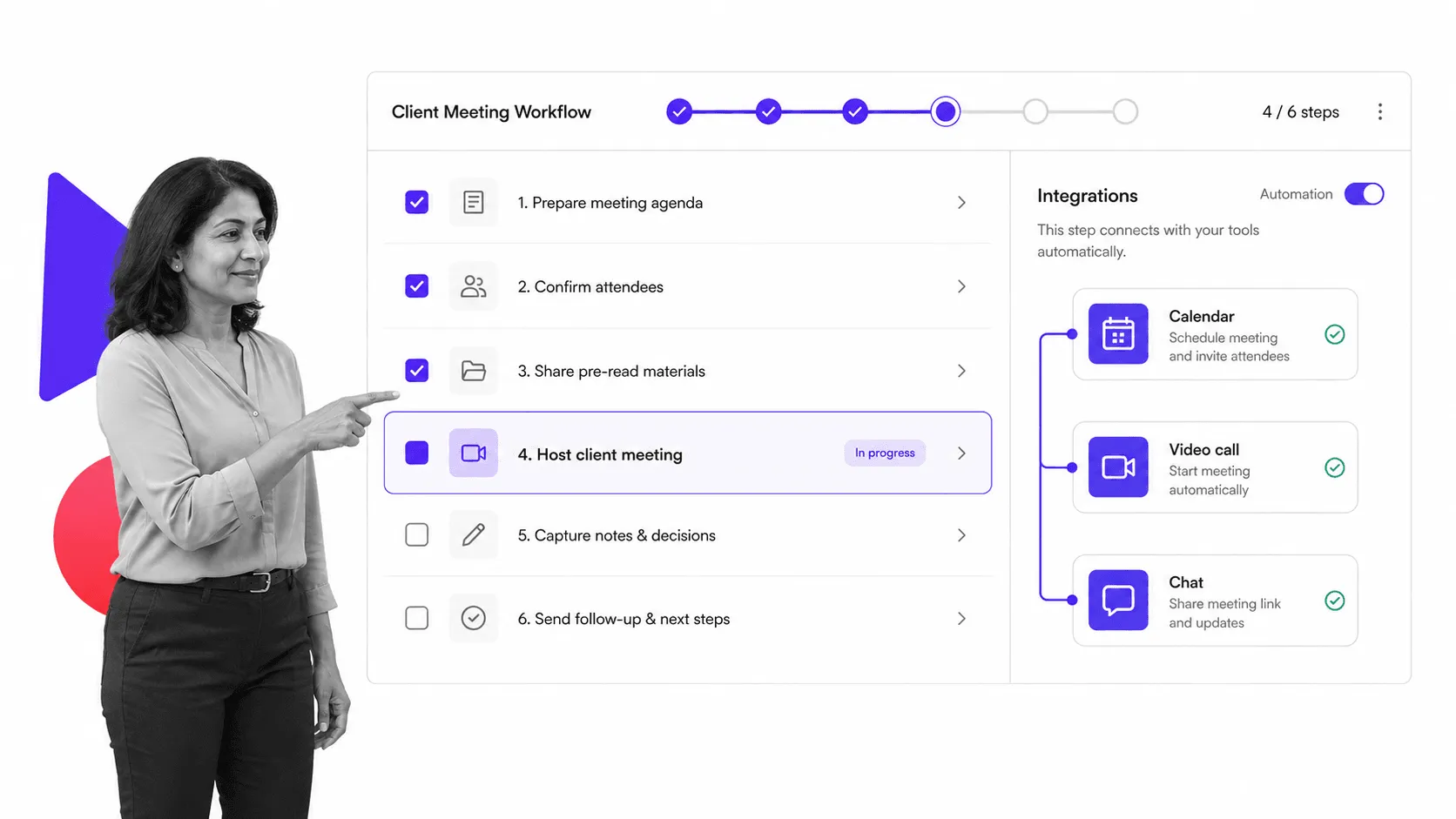
However, Zoom has plenty of automations you can use to integrate it within your workflows, and with the higher plans you can hook up to their REST API and really make Zoom work for you. In my eyes, this makes Zoom an excellent candidate for a corporate choice.
Zooming ahead of the competition. 9/10
Join.me
If you consider Join.me to be a collaborative working tool rather than a meeting tool, then it scores higher in this section.
It could help teams have meetings remotely while all working from one screen. If every member had the premium version then you could jump from screen to screen with everyone able to focus on one at a time and work within the others’ computers. Now that it lives inside GoTo, that collaboration story is part of the wider GoTo suite, which plugs into calendars and the usual business tools.
I’m going to be mean with the score as I’m judging this on which tool is set up well for video conferencing, and I feel the collaborative successes represent a specific use case within a broader category.
Sorryfrom.me. 7/10
Skype for Business
I suppose Skype’s advantage in regards to workflows was that nearly everyone had it already.
But that didn’t really overcome the fact that its competition in this showdown mainly required one-click links to open a meeting in a browser. Skype for Business always should have been beautifully integrated with the whole Microsoft Office 365 suite, and in fairness it never quite delivered on that promise.
Microsoft Teams finally does. It is woven straight into Microsoft 365, so meetings, chat, files, and Office documents sit in one place, and it connects out to hundreds of other apps. If your company runs on Microsoft, this is the natural home for your calls.
Improve your Flow, Microsoft. Teams did. 8/10
GoToMeeting
I know I’ve ragged on GoToMeeting a lot in this article.
I don’t like slagging off other people’s products. However, remember that this is a big established product from a big established company, GoTo, formerly LogMeIn. So I’m not too fussed calling them out on their failings.
When it comes to workflows, I’m going to give them a bit of an easier ride. They have premade integrations designed to hook up with calendar software. Not very inventive, but pretty standard. They are also not too bad for a client who is invited into a meeting as it is a one click procedure and the in-browser UX/UI isn’t awful.
GoToZoomInstead. 6/10
Appear.in
As you’ve probably guessed, I’m a big fan of what they’re doing over at Appear.in, and now at Whereby. I like their approach to simplicity and the fact they want to keep it integrated with your workflows.
They have built native integrations into Slack, Trello, and more, plus an embeddable API. The fact they’ve pushed in the direction of creating integrations with tools which play a vital part in modern workflows shows they’re heading in the right direction.
Plus, the ease of use and one-click simplicity is a joy. A delight, even. It may not be the finished deal for your all hands, but for a quick meeting, or one with a small team, it is sublime. A really streamlined means of video calling.
Startup as you mean to go on. 9/10
Google Hangouts
Not every tool should be assessed on the basis of its ability to pander to my specific needs.
If your daily workflow consists of working from your inbox, particularly if you’re on Google Workspace, then Google Hangouts, and now Google Meet, is probably ideal for you.
It just is. And that’s presumably one of the reasons it’s so successful. That and being a Google product. Meet is stitched into Gmail and Google Calendar, so scheduling, joining, and following up all happen in one place. Without bells and whistles, it quietly does its job very well.
Great if you hang out in your inbox. 8/10
This is also where a process platform earns its keep. Process Street has direct, universal integrations to more than 5,000 systems, and if you need a new one, an AI agent builds it on the fly. That means a video call can be one step in a repeatable workflow: the checklist schedules the call, kicks it off through your video tool of choice, and posts the recap to chat automatically, so the meeting drives the work instead of interrupting it.
What kind of pricing are we talking?
Zoom
We’re conveniently starting with the option most suited for those who want an affordable solution.
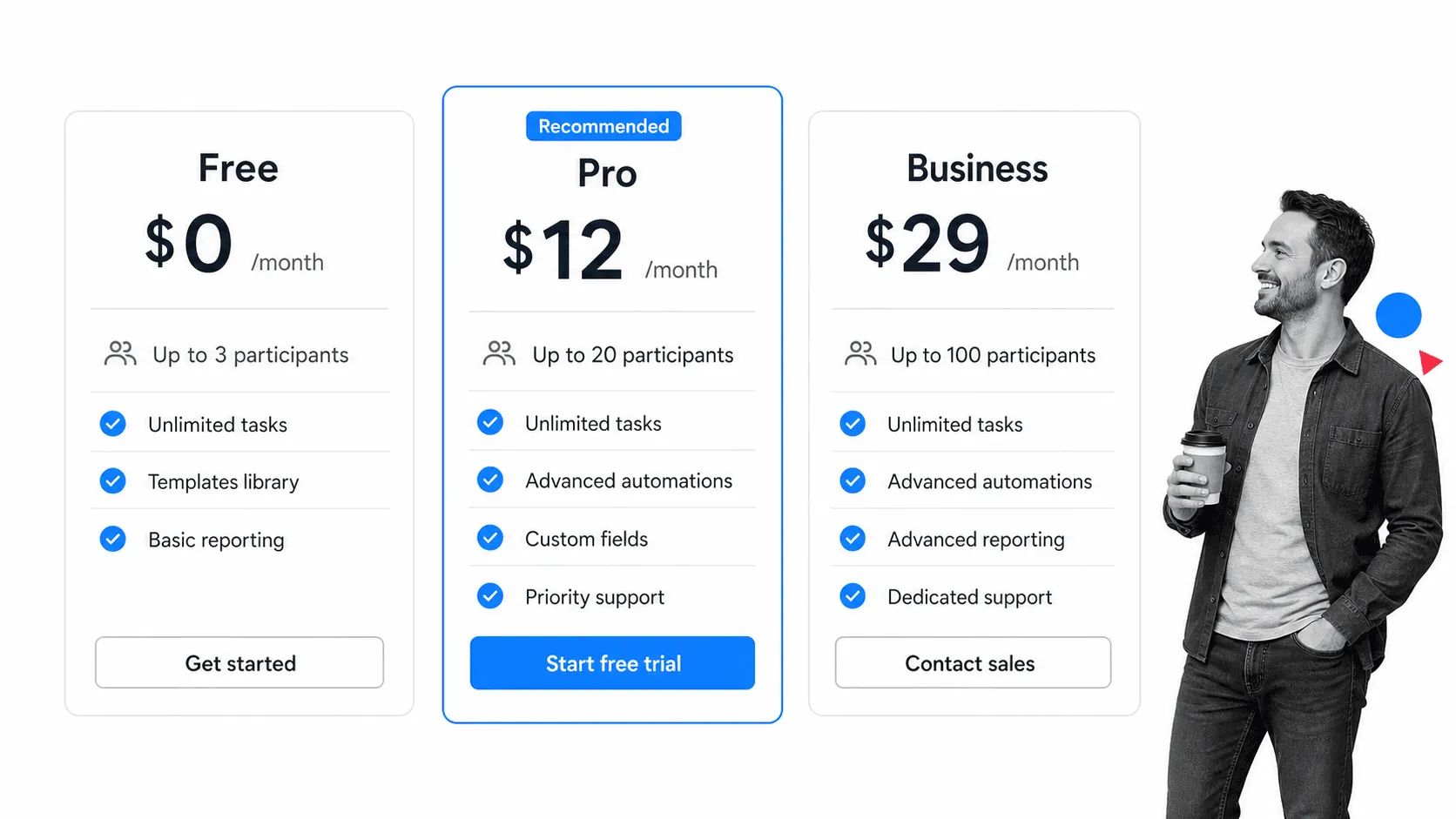
Zoom offers one of the largest free packages out of the options available. With Zoom, you can have unlimited 1-to-1 calls and you can host meetings with up to 100 participants for a maximum of 40 minutes. There’s a high chance that you won’t need meetings larger than that unless you’re offering webinars. Zoom is probably the best option price-wise for teams from small to medium sizes.
The premium Zoom Workplace tiers start in the low teens per user per month and add longer meetings, cloud recording, admin control and user management, and the AI Companion, scaling up to business and enterprise packages with custom branding, webinar functionalities and more.
100 users for free. Premium from the low teens per month.
Join.me
Join.me used to offer a free plan for up to 10 people and paid Pro and Business packages. Those standalone plans are gone now that it has been folded into GoTo, so its pricing lives inside the GoTo Meeting plans described below.
Now priced as part of GoTo Meeting.
Skype for Business
Normal Skype used to come for free, and Skype for Business came as part of one of the Office 365 suites. The free Skype gave you a decent participant limit and a handy instant messaging service that was shifting further and further toward the Slack area of the market.
Today, Skype for Business is retired. Microsoft Teams has a free tier for basic meetings, and its fuller feature set comes bundled with the Microsoft 365 Business plans, which start around a few dollars per user per month for the basic suite and step up for the plans that include the full Office apps. The advantage is the same one it always had: if you already pay for Microsoft 365, in a real sense your video calling is already covered.
Free tier available, otherwise included with Microsoft 365 business plans.
GoToMeeting
GoToMeeting used to be a little sneaky when it came to their pricing. If you went to their website you wouldn’t see any mention of a free version, though a very basic free version was tucked away on a subdomain.
That free tier is gone, and GoTo Meeting is now paid only, starting around the low teens per organizer per month for the core plan and rising for larger rooms and added features. Fortunately, you can still get a free trial of the proper software to kick the tires first.
No free tier, premium from around the low teens per month.
Appear.in
The lightweight Appear.in offered a nice little free service and didn’t charge over the odds for its premium, and Whereby continues that.
The free service gives you a small room while the paid plans raise the participant limit, allow you to customize your room, add your logo and such, and unlock the embeddable API and screen sharing. Whereby is targeted very much at startups and small teams, and its pricing reflects that.
Free tier available. Low cost paid plans.
Google Hangouts
There was effectively no separate price for Google Hangouts, and the same is true of Google Meet.
Simple as that, really. With a free Google account you get group calls of up to 100 participants and unlimited calls within those parameters. Paid Google Workspace plans lift the limits and add recording, longer meetings, and admin controls. If you’re already a user of Google Workspace, then Meet is hooked up to your calendar and embedded in your emails.
Free with a Google account. More with Google Workspace.
Which did my colleagues prefer?
Since video calling isn’t something you just do with your friends or your colleagues, we thought it’d be best to look at the usability of these tools from the perspective of a client, prospect, or job candidate. Interactions of these kinds are often first impressions, or higher-pressure situations where less should go wrong. With that in mind, the most friction-free option was Appear.in, now Whereby, which let me enter instantly and start chatting. GoToMeeting was easily the worst and most confusing experience, and I ended up having to download one Chrome extension, one desktop app, and being unaware whether my webcam and screen-sharing was or wasn’t active. Striking a balance between features and usability, I’d recommend Zoom if you need things like remote access and annotations, and Google Meet or Microsoft Teams if your whole team already lives in Google Workspace or Microsoft 365. Benjamin Brandall
Some honorable mentions within the video space
We’ll make this really quick.
Google used to promote its Hangouts on Air service for webinars. If you want to head in that direction now, you can run a webinar through YouTube Live or LinkedIn Live and do a cross platform live streaming session with the potential of gaining some social reach.
If you’re just looking to have a quick video call with someone, you can simply video chat with them through FaceTime or a social app. There are other similar socially oriented services available too. You have plenty of options.
There’s also Gruveo for one to one video calls in your browser. Cisco Webex is the other big enterprise name to know, a security and compliance focused platform used heavily in regulated industries. And Pexip is focused on large, high security, and government grade deployments; this is not pure SaaS, you often buy it and host it. Contact them for prices if you have a healthy budget. A couple of names from the original comparison have since gone dark: BlueJeans was shut down in 2024, and the browser tool Rabbit closed years ago, so there’s no need to chase either.
My video conferencing app recommendations!
They’re all good video conferencing services, Brent.
But some are better than others.
Which video conferencing software is best for you will depend on your use case. Maybe you’re looking for only one solution to cover all your needs, or maybe you’re happy to employ a number of different solutions.
If you’re an existing Microsoft 365 user, then internal meetings could very easily be done via Microsoft Teams, the successor to Skype for Business, the same way Skype used to be the easy in house choice. Some of the above points are true for Google Meet, the successor to Google Hangouts, too. If it fits your workflow nicely then there’s no harm in sticking with it.
The tool which jumps out to me as a lightweight and very easy way to have a video call for free with a client would be Whereby, the successor to Appear.in. Simply send your client a link and they can click it and join the call. Easy for them and easy for you. As the call happens in your browser, you can just use a Chrome extension to record the browser for free.
Whereby is my personal favorite of the featherweight tools on the market.
However, all this considered, the tool which stands out to me as being as good as any other but with the largest selection of free features is Zoom.
Zoom provides a full service of video conferencing for up to 100 people for free. The quality is high and it’s easy to use. It has on screen annotation functionalities and a myriad of in-depth features which the lightweight Whereby doesn’t have, plus AI notes built in now.
Guess which option we use across all our teams at Process Street?
Yep. Zoom. All day, son. All day. And whichever you choose, the real win comes when the call stops being a thing you drop into and out of, and becomes one connected step in how your team actually gets work done.
What have your experiences been with video conferencing software? Which ones do you use, and which do you avoid? What have I missed out? Let me know in the comments!
The post Best Video Conferencing App: Skype vs Hangouts vs GoToMeeting vs Zoom vs Join.me vs Appear.in first appeared on Process Street | Compliance Operations Platform.