











Best Process Documentation Software Compared: Microsoft 365 vs Process Street
Blog: Blog | Process Street | Compliance Operations Platform
Best process documentation software compared: Microsoft 365 vs Process Street. The right toolkit should help people understand a process, keep the approved version current, and prove what happened when the process runs.
Use Microsoft Word for formal documents, Excel for calculation-heavy data, PowerPoint for presentations, and Process Street when repeatable work needs owners, approvals, automation, evidence, and an audit trail.
Documenting processes: Process Street vs Word
Documenting processes
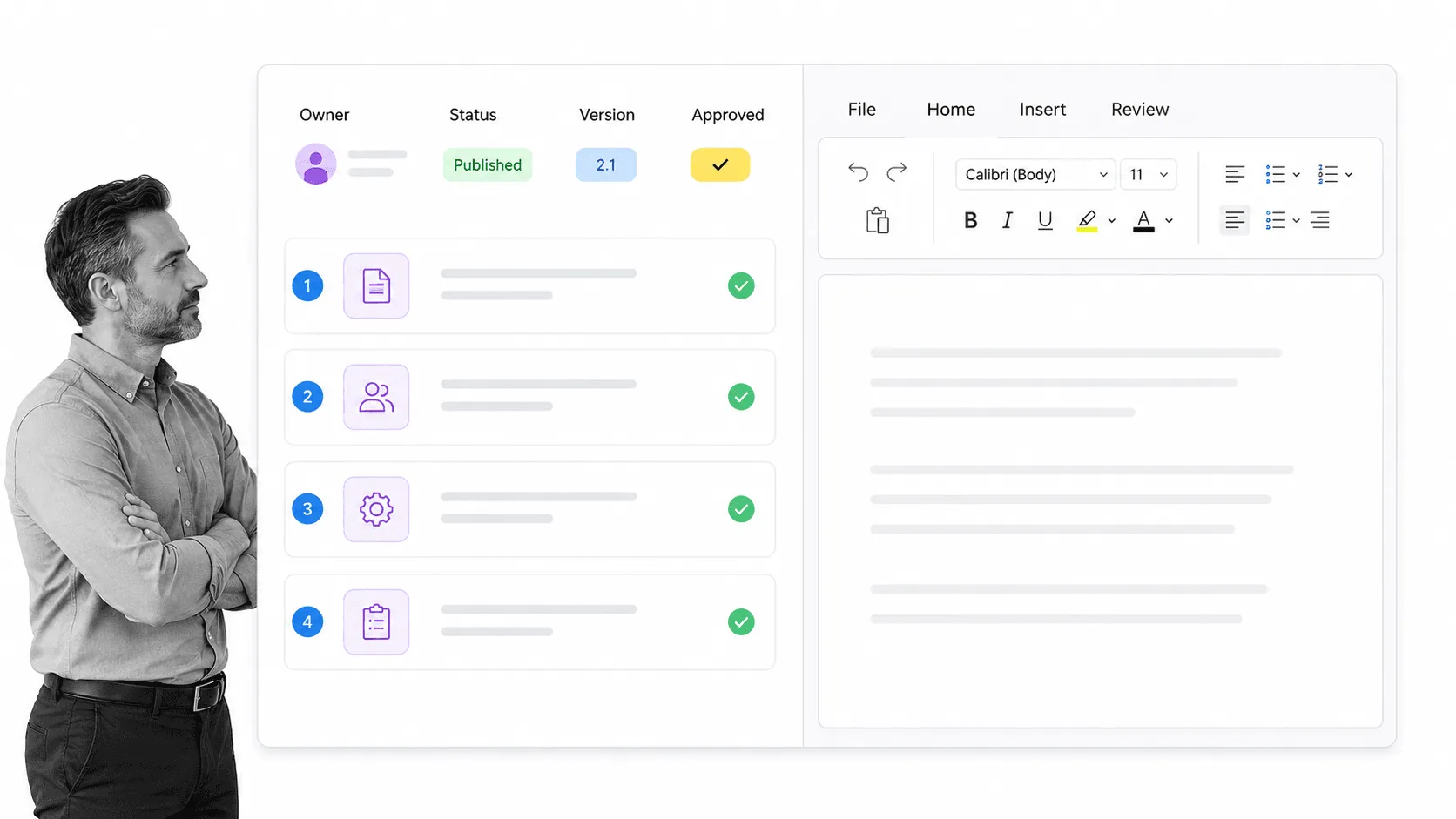
Frankly, Microsoft Word’s biggest advantages are familiarity and control over a formal document. If we were to look at Word critically for documenting your processes it:- Lets you write text and (clunkily) include images
- Can format your text for variety (headings, subheadings, etc)
- Doesn’t need the internet
- Can save files locally or in Microsoft 365
- Has limited tracking or “overview” of your documents and the data inside them
- Can be shared with colleagues by copying your files (or a link if everyone has Microsoft 365)
- Can open files in a browser or Microsoft mobile app
- Lets you easily include text, images, videos, emails, and more
- Also allows text formatting
- Needs an internet connection
- Has multiple overview and easy-tracking features (for workflow runs and data)
- Can be shared with just a link (recipient doesn’t even need a Process Street account)
- Can export PDF documents for offline access if desired
- Can export spreadsheet overviews of your processes
- Allows you to print your templates
- Never requires saving to your computer
- Can be fully accessed from any device that has an internet browser
Using documented processes
Documenting a basic process in Microsoft Word is simple. Microsoft 365 also makes the master document easier to find, share, and update than a local file. The remaining problem is execution: a reader can see the instructions, but the document does not itself assign the next step, require evidence, enforce an approval, or show the state of every active run. Teams commonly add a spreadsheet, task manager, inbox, or folder to track those details. That creates extra files and duplicated data. The procedure may be current while the operating record is scattered across several tools. Process Street keeps the instructions and each completed workflow record together. To open, follow, and track your processes in Process Street, at worst you have to:- Open your browser
- Log into Process Street
- Run a workflow from a template
Integrating with other software
Microsoft Word can participate in automated systems through Microsoft 365 and Power Automate. It is still primarily a document editor, so recurring work needs another layer for assignments, approvals, evidence, and status. Process Street is designed to orchestrate that work. It has direct, universal integrations to 5,000+ systems. Need a new one? An AI agent builds it on the fly. Zapier and other integration partners remain available, which makes it easier to manage data and automate processes you should not have to coordinate manually. Workflow runs can be set to automatically trigger when a new client signs up and data can be pushed into and out of workflow runs to save the trouble of copying it over manually. Word remains useful for the document itself, while Process Street controls the recurring work around it.Creating formal documents: Process Street and Word

Managing and tracking data: Process Street and Excel
Showing a process overview
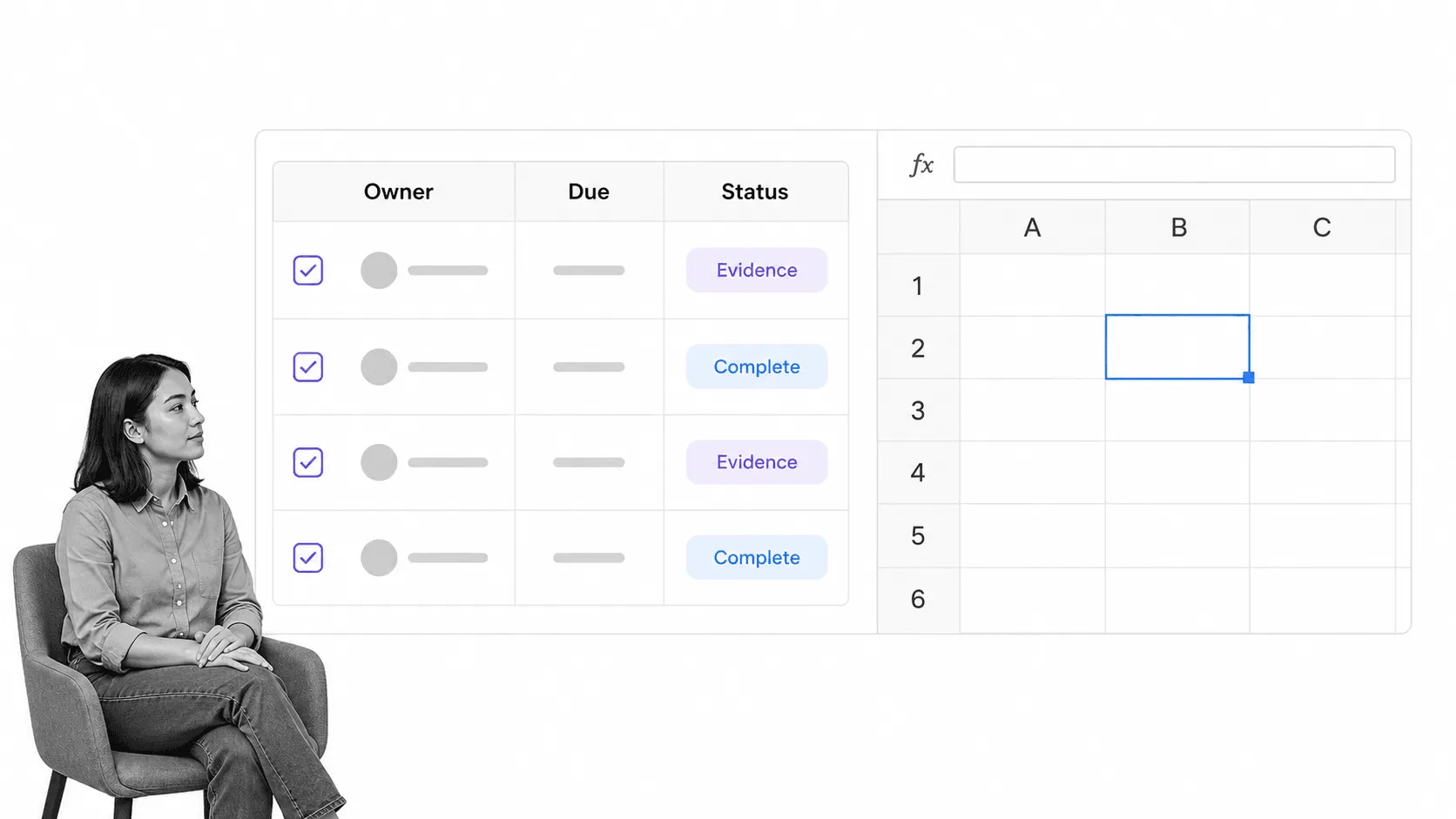
In terms of tracking your step-by-step processes (and as you’d expect), Excel is pretty terrible. Not only do spreadsheets quickly become Lovecraftian behemoths if you enter too much data, but it’s next to impossible to record more than a one-sentence task overview before becoming cluttered. In other words, with Excel you can record the tasks you complete and the hard details of how and when it was done in basic columns and rows, but it isn’t practical to elaborate on your tasks. To carry out and track your processes you’d need to use Word to store your template and Excel to track your results. Process Street combines the best of both worlds into one app, since your workflow runs contain step-by-step instructions and record your progress and data you enter. You can even access a spreadsheet-like overview of all of your workflow runs by using the template overview tab. With just a few clicks (and without opening separate documents or spreadsheets) you can navigate between workflow runs and overviews to see everything you could possibly need to know about your processes.Dynamic data recording
Excel lets you create formulas which can automatically sync data across your spreadsheet – this lets you create dynamic data sets, such as a finances report which automatically adjusts to alterations. To do this, however, you need to know how to use Excel formulas and manually set everything up. Not to mention that a single mistake can ruin the entire data set. With Process Street you never have to worry about setting up your overview, as everything is automatically updated and pushed into your table view. All you have to do is run and fill out your workflow runs – we do the heavy lifting and data management for you. You can even easily customize your overview to suit your needs and preferences, such as hiding, revealing, resizing, and reordering columns, and filtering workflow runs by their status and assignees.Recording huge data sets
Data is naturally easier to manage in a spreadsheet format, and so when you need to record large sets of data such as during keyword research, your best option is to export to a spreadsheet. In the end, nothing can beat Excel for sheer spreadsheet data crunching power. When it comes to overviewing that data in a usable and easily digestible way, however, Excel can be daunting. In other words, Excel is perfect for storing and organizing large data sets, but summarizing and linking to them in your Process Street workflow runs makes everything more easily viewable.Integrating with other software
Both Excel and Process Street can connect to the rest of your stack. Excel can have cells filled in and automatically updated, while Process Street can launch workflow runs, assign work, collect evidence, and trigger the next action. Which connection is useful depends on whether the job is analysis or controlled execution. It’s apples and oranges, but if you’re dead set on a “vs” matchup, go for Excel for purely data sets and Process Street for recording and tracking your processes.Visualizing processes: Process Street and PowerPoint
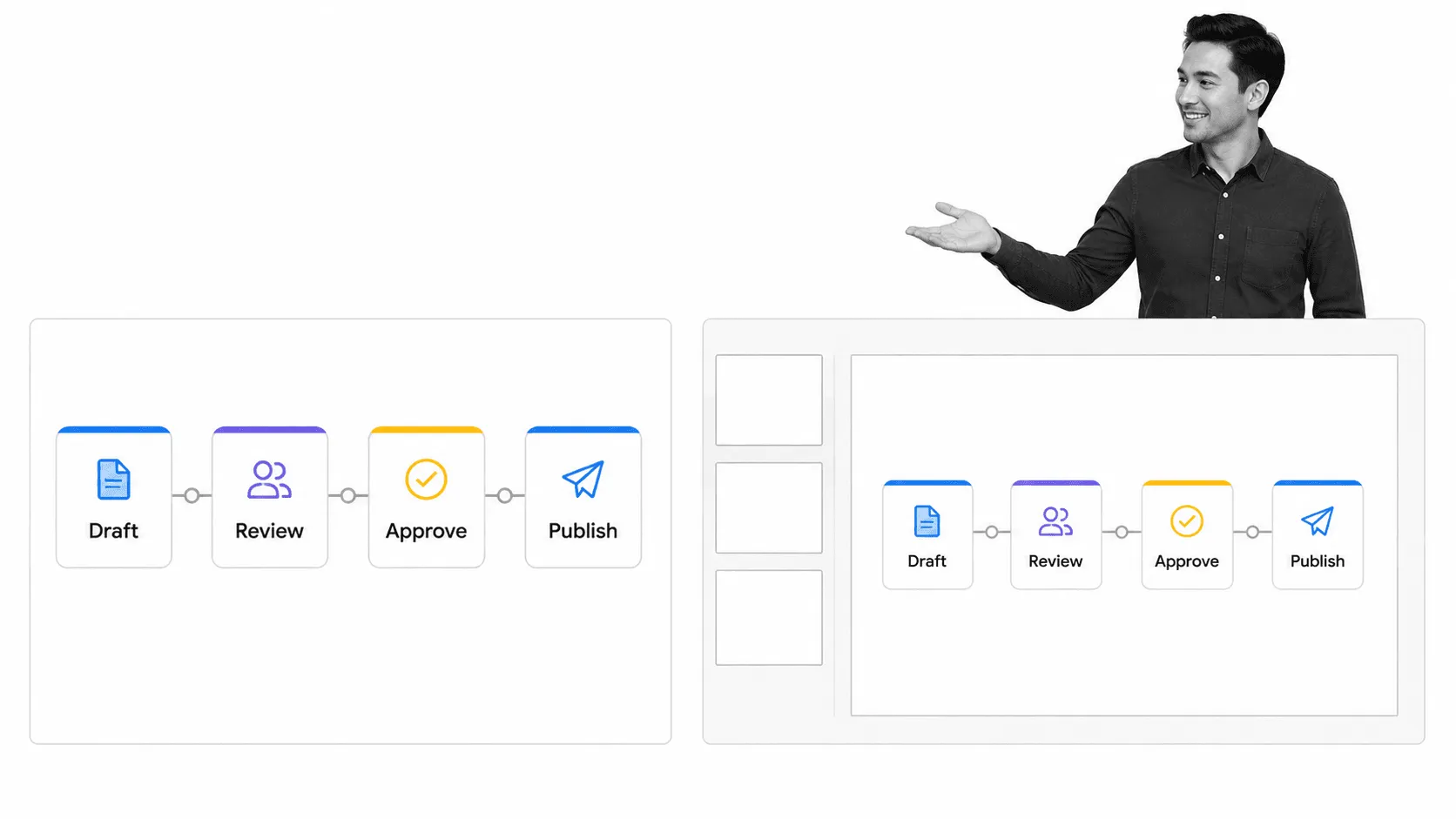
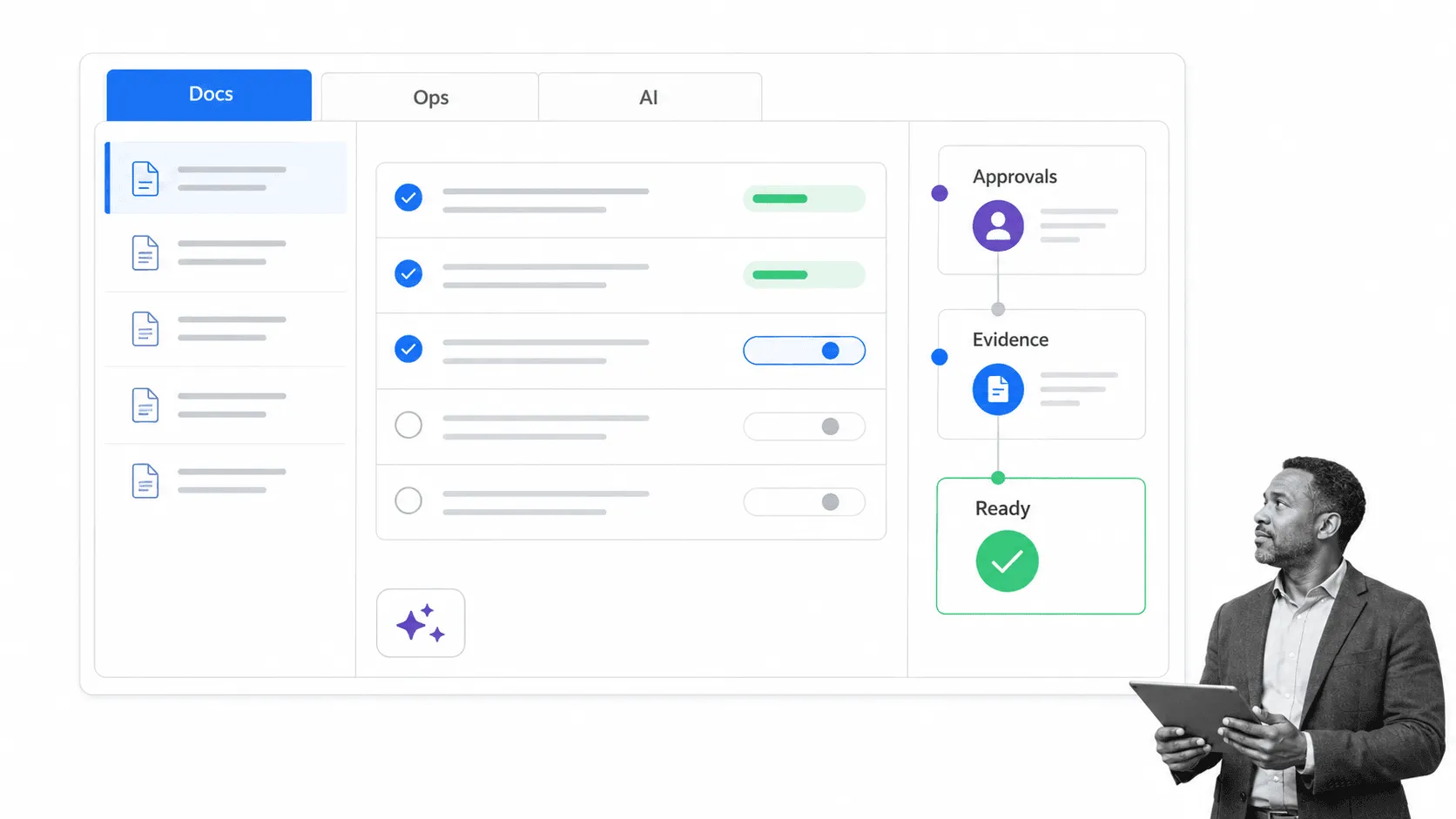
Improve your process documentation software toolkit with Process Street
The post Best Process Documentation Software Compared: Microsoft 365 vs Process Street first appeared on Process Street | Compliance Operations Platform.