











12 IT Processes to Avoid Server Failures and Client Headaches
Blog: Blog | Process Street | Compliance Operations Platform

IT processes are the recurring workflows that help teams avoid server failures and client headaches by keeping technical work from becoming guesswork. They cover the things teams cannot afford to improvise: inventory, backups, server setup, incident response, helpdesk escalation, access control, and audits.
When those workflows are documented and run in Process Street, the work is easier to assign, automate, review, and prove. That matters for uptime, client trust, and workflow automation compliance, because every skipped step in IT can turn into a security issue, a support backlog, or a client headache.
“Without IT process management, there is no way to assure cost-effective IT services” – Casper van der Kolk
This pack gives you 12 practical IT process templates you can adapt for day-to-day operations. Use them as starting points for recurring work in Process Street Ops, connect them to SOPs in Docs, and use Cora to help monitor risk, surface gaps, and improve execution over time.
Here are all of the checklists covered in this pack:
- Inventory Management Process
- Network Security Management
- Client Data Backup Best Practices
- Computer Maintenance Guide
- Ubuntu Server Setup Process
- Virtual Private Server Setup
- IT Support Process
- Helpdesk Management
- Server Maintenance
- Server Security
- Information Security Incident Response
- SQL Server Audit Checklist
Let’s optimize and improve your IT processes.
Inventory Management Process
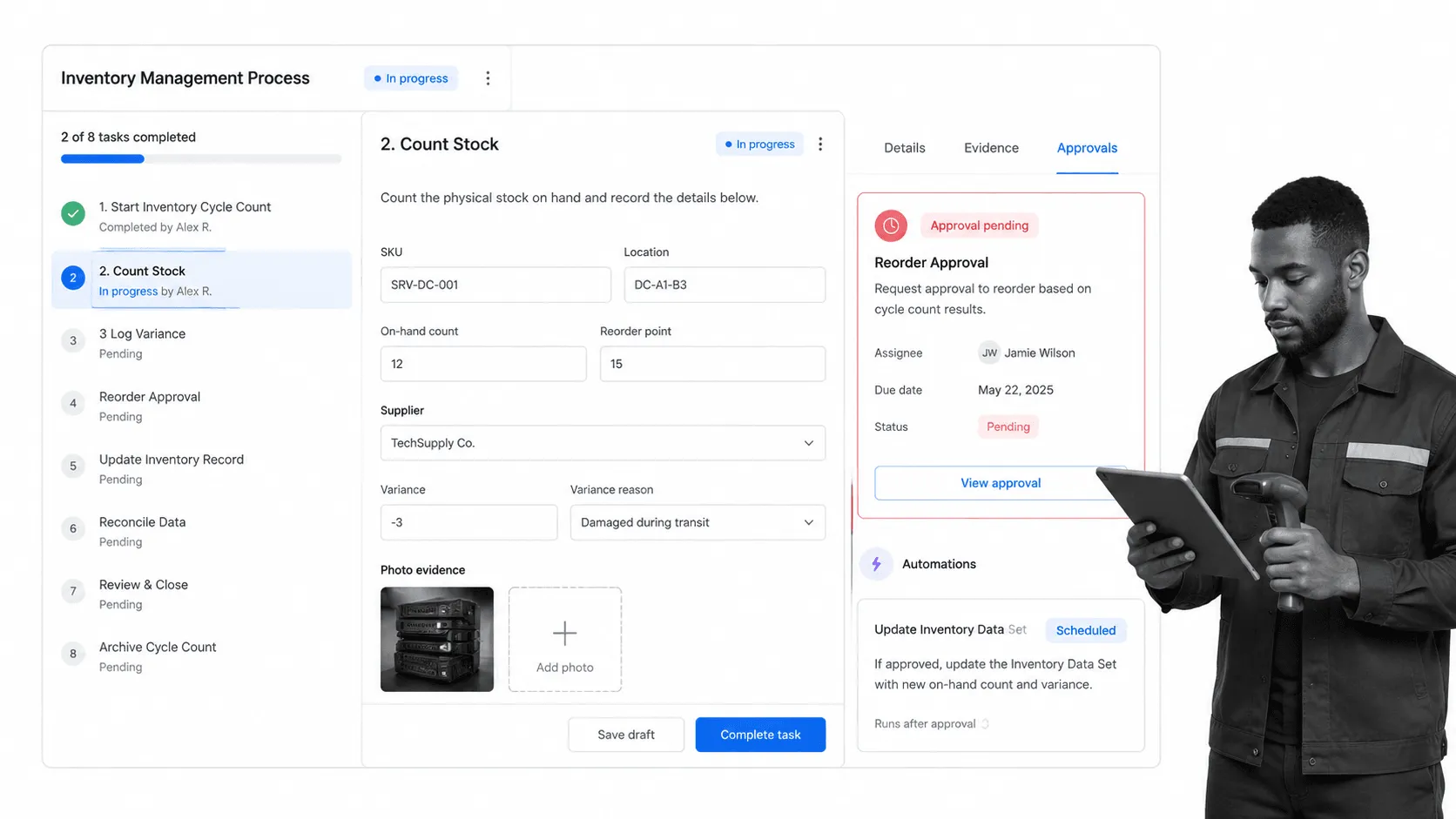
Inventory management is a process which can be difficult at the best of times; keeping track of your stock and making sure that it gets from A to B isn’t nearly as easy as it sounds. Even when you think you have the process completely pinned down (you might have run it a thousand times or more in the past with little to no error), all it takes is one slip-up to cause a catastrophe.
IT teams may not be managing retail shelves, but they still carry expensive assets, replacement parts, loaner devices, and customer equipment. Inventory distortion remains a major business cost, with current research putting the global impact in the trillion-dollar range.
We thought so. No-one likes losing money or stock for no good reason, so we’re proud to introduce our inventory management process.
When using this checklist, you’ll be guided through an easy and straightforward approach to compiling your regular orders, integrating your stock levels, processing your received items and updating your inventory management system.
Run the Inventory Management template.
Network Security Management
You tell yourself that you’re not going to be one of those security breach horror stories that fly by your Facebook feed once in a blue moon. “There’s no way that a hacker could get past all of those layers of security!” You chuckle, sinking deeper into your leather armchair, watching your workfellows leave the office for the day. Yes, the office has a leather armchair now.
Two months later you’ve lost your job because Jerry walked out of the office with a USB stick containing your network’s sensitive information.
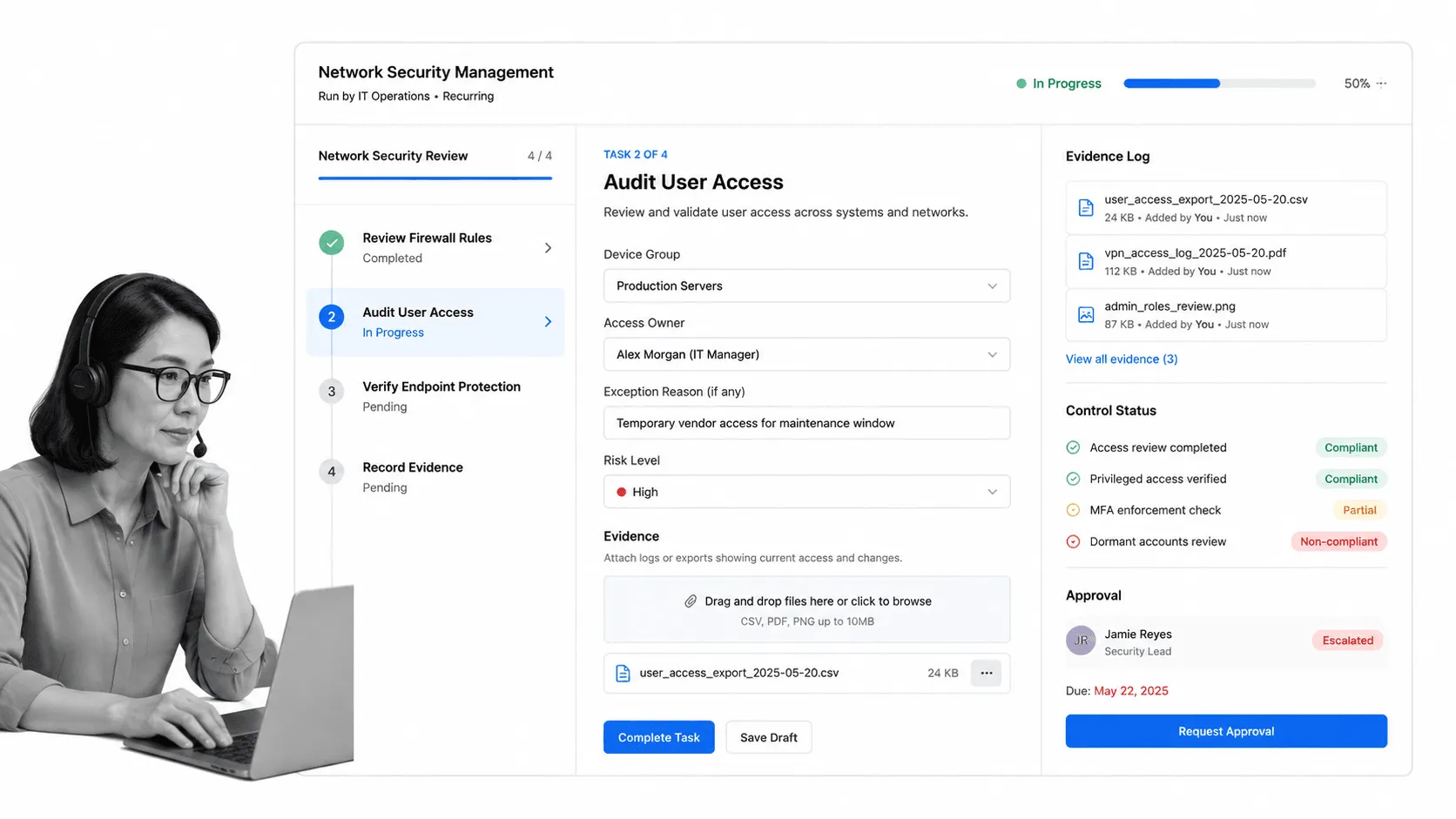
There are so many points in a network which need to be covered, and it’s sadly just not enough to tighten up the vulnerable areas and leave it at that. Instead, a good network security program requires a regular checklist to ensure that everything is up to date and locked down tight.
That’s where our network security management checklist comes in; a process which you can run every week for each network you are responsible for. With general tips for the entire network and specific tasks for your workstations and servers, no stone will be left unturned!
After all, if there’s one thing you should take away from this post (other than the handy processes), it’s that there will always be a Jerry in every office.
Run the Network Security Management checklist.
Client Data Backup Best Practices
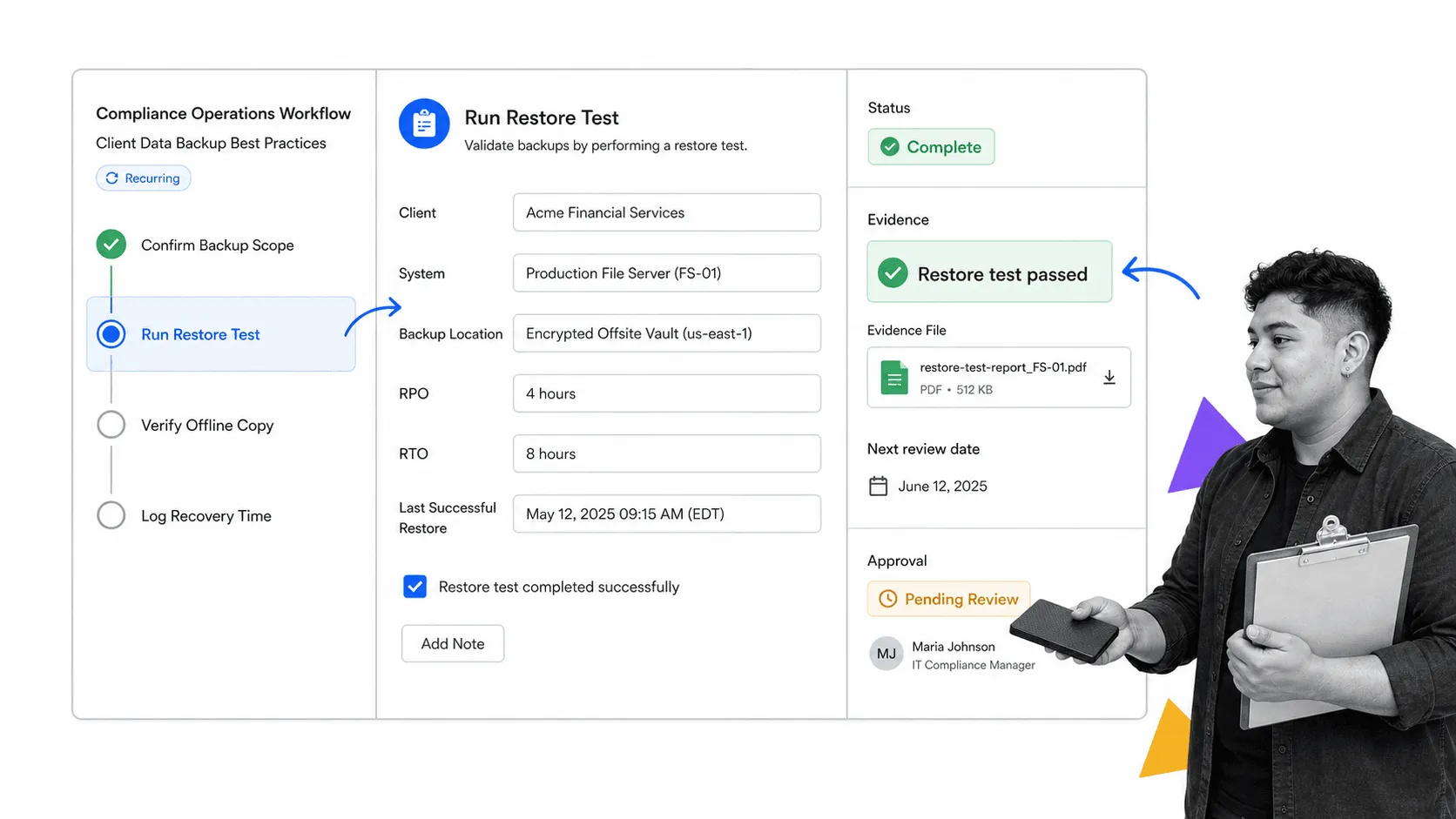
Speaking of sensitive data, you need to ensure that your clients’ data is backed up and securely away from prying eyes; whether you’re protecting you own client data or serving to back up another firm’s (say, a legal practice), data protection from loss and theft is key.
The trusted backup method is not always the newest cloud product. Offline, air-gapped, and tape-based backup strategies still matter because they give teams a recovery path when ransomware, accidental deletion, or platform failure takes the primary environment down.
The point is not tape versus cloud. The point is having a documented backup workflow that covers ownership, schedule, verification, storage location, recovery testing, and evidence that the backup actually ran.
Well, look no further than our new client data backup best practices checklist. A handy executable process for any employee who is required to securely backup their client’s data.
After all, there’s nothing quite like taking a stack of backups and locking them in a vault to say “Your data is secure”.
Run the Client Data Backup Best Practices checklist.
Computer Maintenance Guide
A good computer can easily cost upwards of $1000 which is, frankly, worth it if the unit lasts for a decent lifespan. Spending that chunk of cash for a new one in 5 or so years time causes minimum impact on personal or company funds, because the price (for a $1000 desktop) would only be $200 per year that it runs.
If, however, some sort of regular maintenance is not performed then one of two things will happen.
- That price per year figure will, at least, double as the machine will die before its time.
- You’ll be pulling your hair out at the rapidly declining performance, constantly calling tech support and end up buying a new PC to just be done with it.
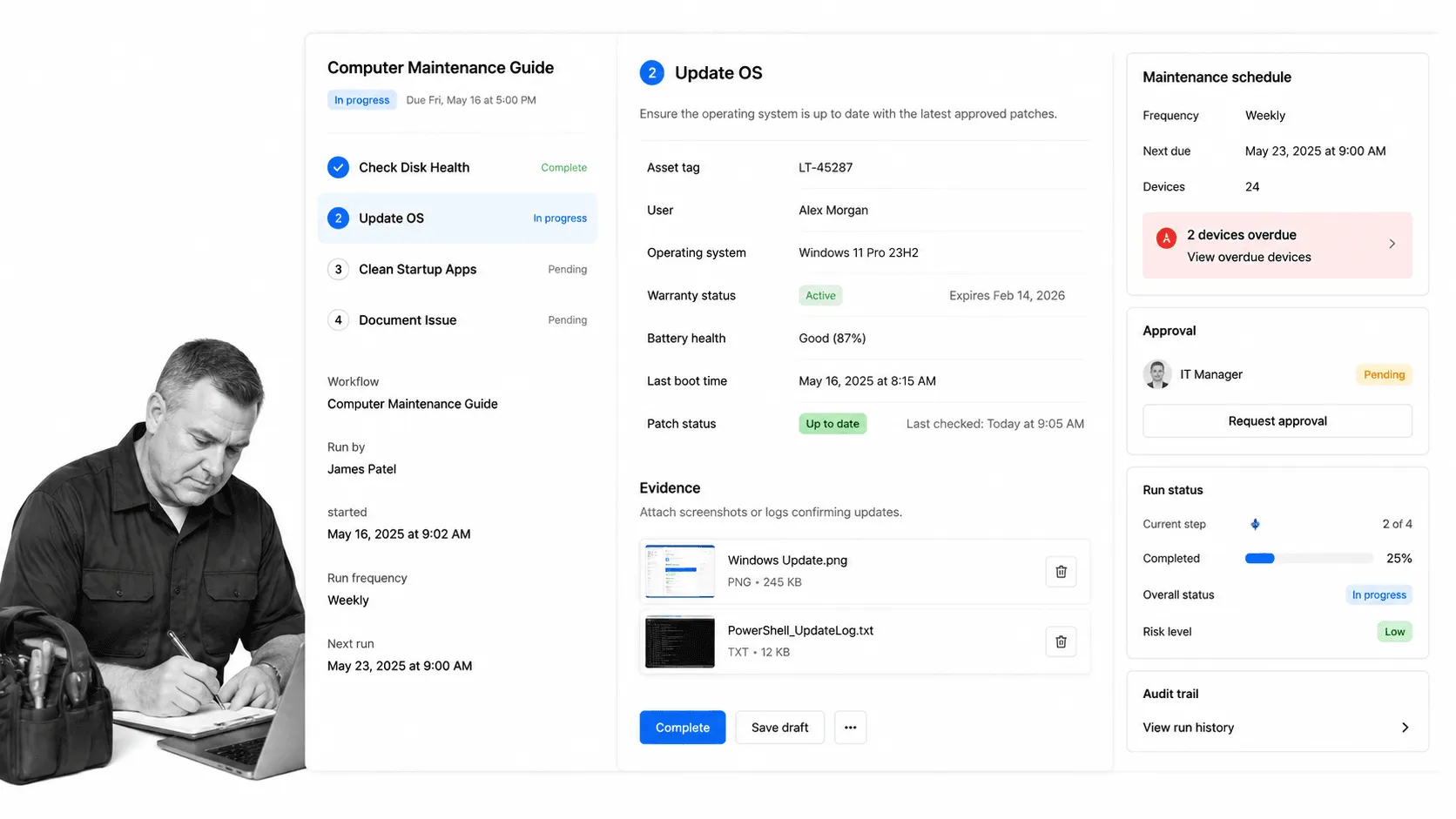
This is why we created our computer maintenance guide; a checklist to take you through a weekly maintenance schedule to keep your computer in top condition.
This doesn’t just have to be for your personal use either – by giving this checklist to clients or even other employees you can both make the IT department’s jobs easier and potentially make some new referrals out of neutral customers.
Run the Computer Maintenance Guide template.
Ubuntu Server Setup Process
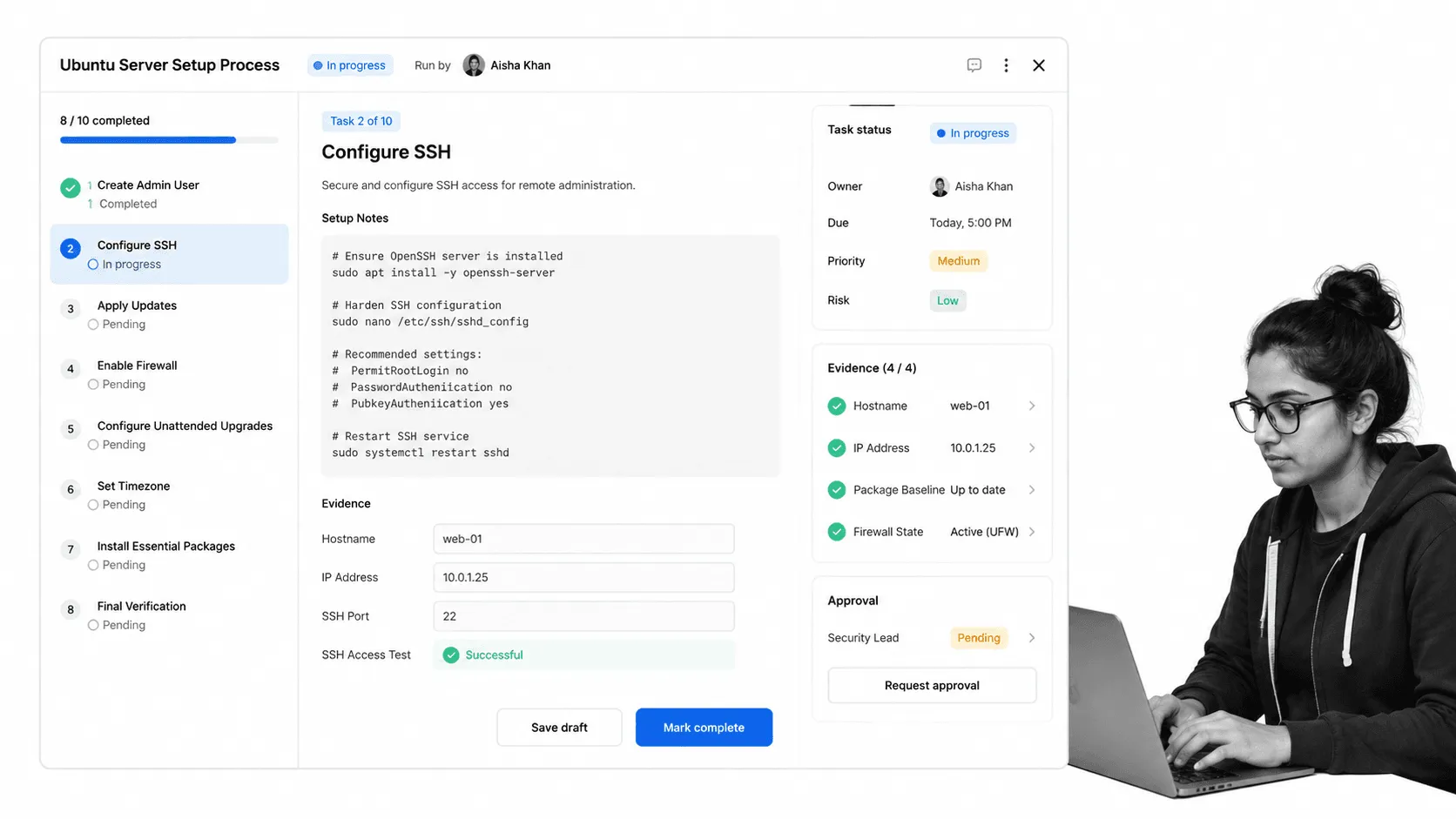
Servers can be confusing enough to maintain, but setting one up can be one of the most complicated tasks a new employee in the IT department can undertake. This isn’t necessarily because getting the server up and running is difficult, but instead due to the need to completely understand every aspect of the process and implement countless security measures.
Then again, even if your employees are experienced in setting up a Windows server, who’s to say that there isn’t a better option for your server’s OS?
“Linux is… the fastest performing OS with the smallest resource footprint” – David Barker
David Barker there was talking about a comparison of Windows and Linux in terms of business use, and whilst he was inconclusive in which was better, the main downside he gave for Linux was that it is currently lesser used, and so not many administrators are well-versed in utilizing the OS correctly.
So far you have a double-whammy of a steep learning curve for setting up a Linux server. So what if you could negate the need for any significant experience with either Linux or the creation of a server, and still get the superior results from utilizing the OS?
Our new server setup process to the rescue! By giving this checklist to new and experienced employees alike when setting up a new server, you can ensure that a new Linux server can be created from naught but a blank computer as a starting point.
Not only this, but we’ve also made sure to include the maximum in security measures explained in a way that makes them easy to implement, protecting your sensitive data whether a brand new employee or seasoned veteran is tasked with the setup.
So what are you waiting for? Let’s get those sleek and secure new servers up and running!
Run the Ubuntu Server Setup Process template.
Virtual Private Server Setup
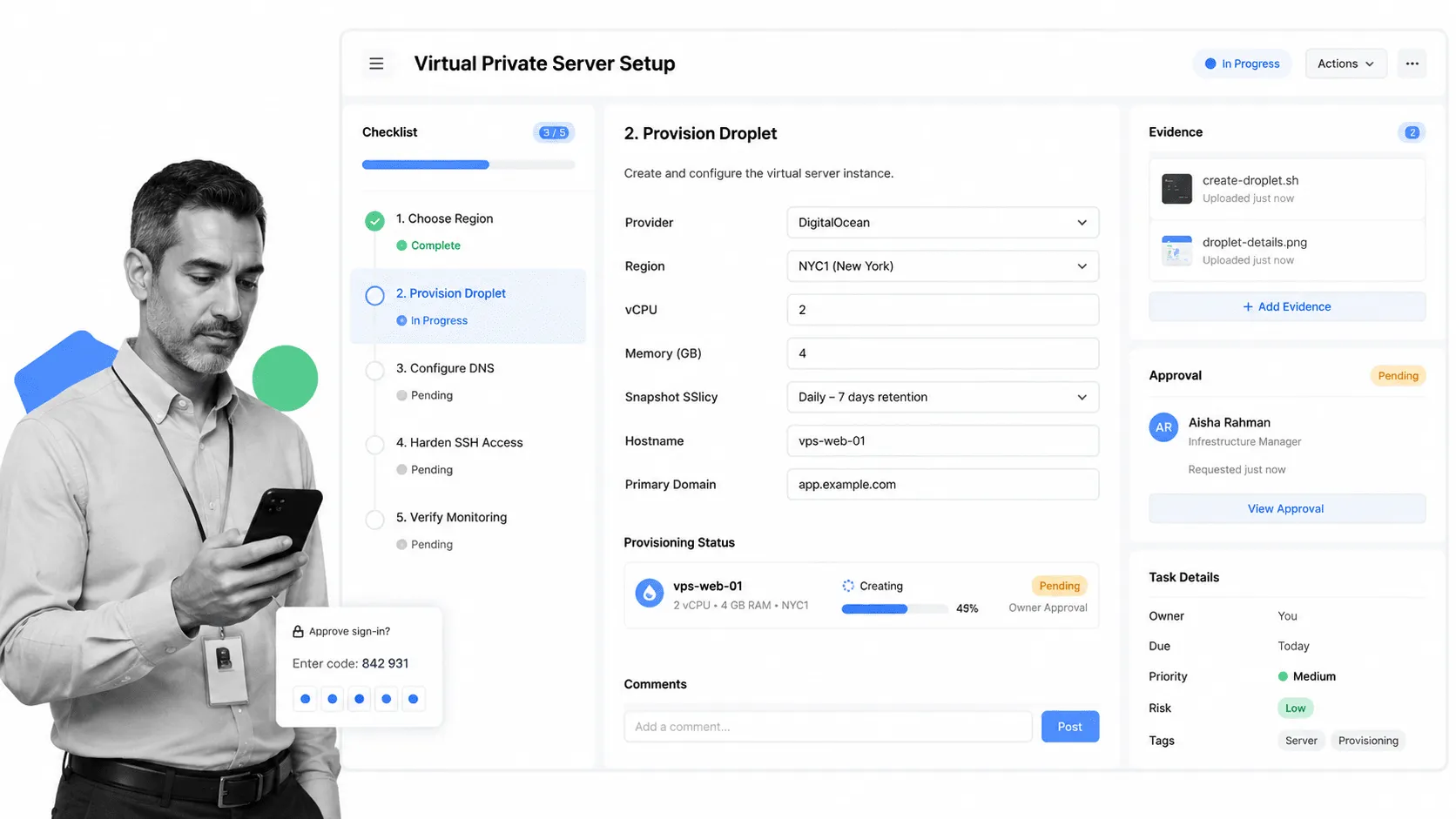
Sometimes you won’t require the use of a full-blown server with high levels of access or even storage. Virtual Private servers are fantastic for creating secure cloud storage (perhaps for data backups), hosting general-purpose servers or just interfacing simple web requests; the platform is incredibly versatile.
The one thing holding many people back is the sheer number of ways in which to go about setting up a VPS. Do you try to host the server yourself? If not, who is the best choice to host it? Won’t it cost the Earth just to keep it running? How can you guarantee that you’re getting a good deal?
Well, you can put those questions to rest by following our quick and easy virtual private server setup checklist.
You’ll be taken through the steps of setting up your VPS with DigitalOcean as the host (a cheap and reliable hosting platform – trust us, we did the research). Whether you use this in your business or personal life, these steps will cover everything you need to know to get that VPS up and running.
This checklist can also be referred to customers or clients who are looking to set up their own VPS; why not take some free positive advertising?
IT Support Process
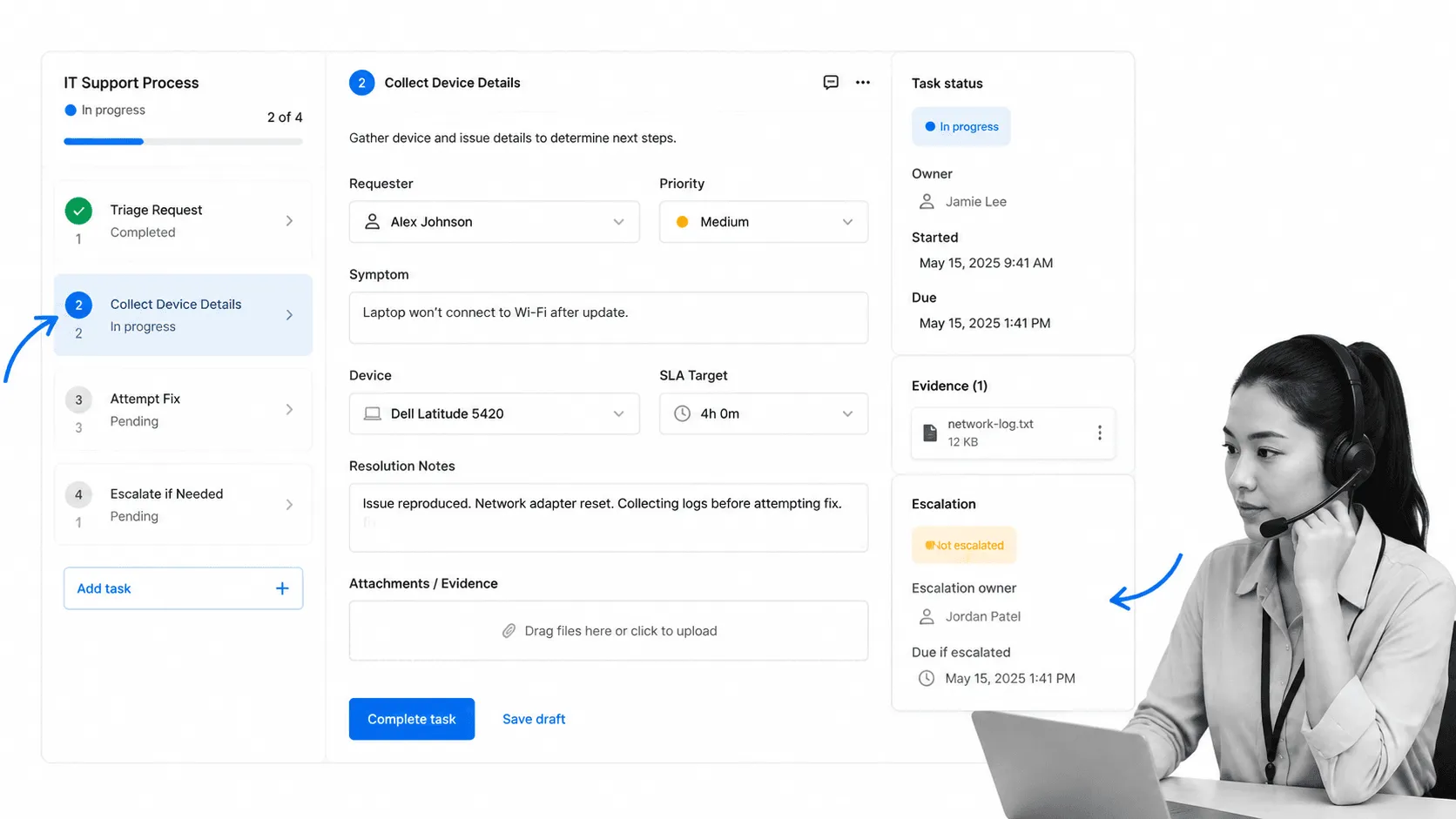
To start off, we think tech support employees are fantastic. The job can be thankless, stressful and downright maddening at times because the very nature of the position means that everything makes their daily tasks harder to do.
Sadly, it’s also a task which many managers either don’t know how to improve or don’t quite realize the impact of.
‘Bosses and teammates rarely see when the support staff make customers happy, only when they make them mad’ – Evan Hamilton
In most organizations, tech support is a proving ground for new employees with little experience, ergo the majority of cases you hear about through the complaints system are probably because the tech support employee has no idea how to actually fix the problem.
So, instead of having them memorize (and still probably forget) the solutions to the most common IT problems, you can now just tell them to load up our IT support process!
Using this checklist, any tech support employee can go through both the simple and specialized checks and fixes to solve any common computer hiccup when in control of the computer in question.
Run the IT Support Process template.
Helpdesk Management
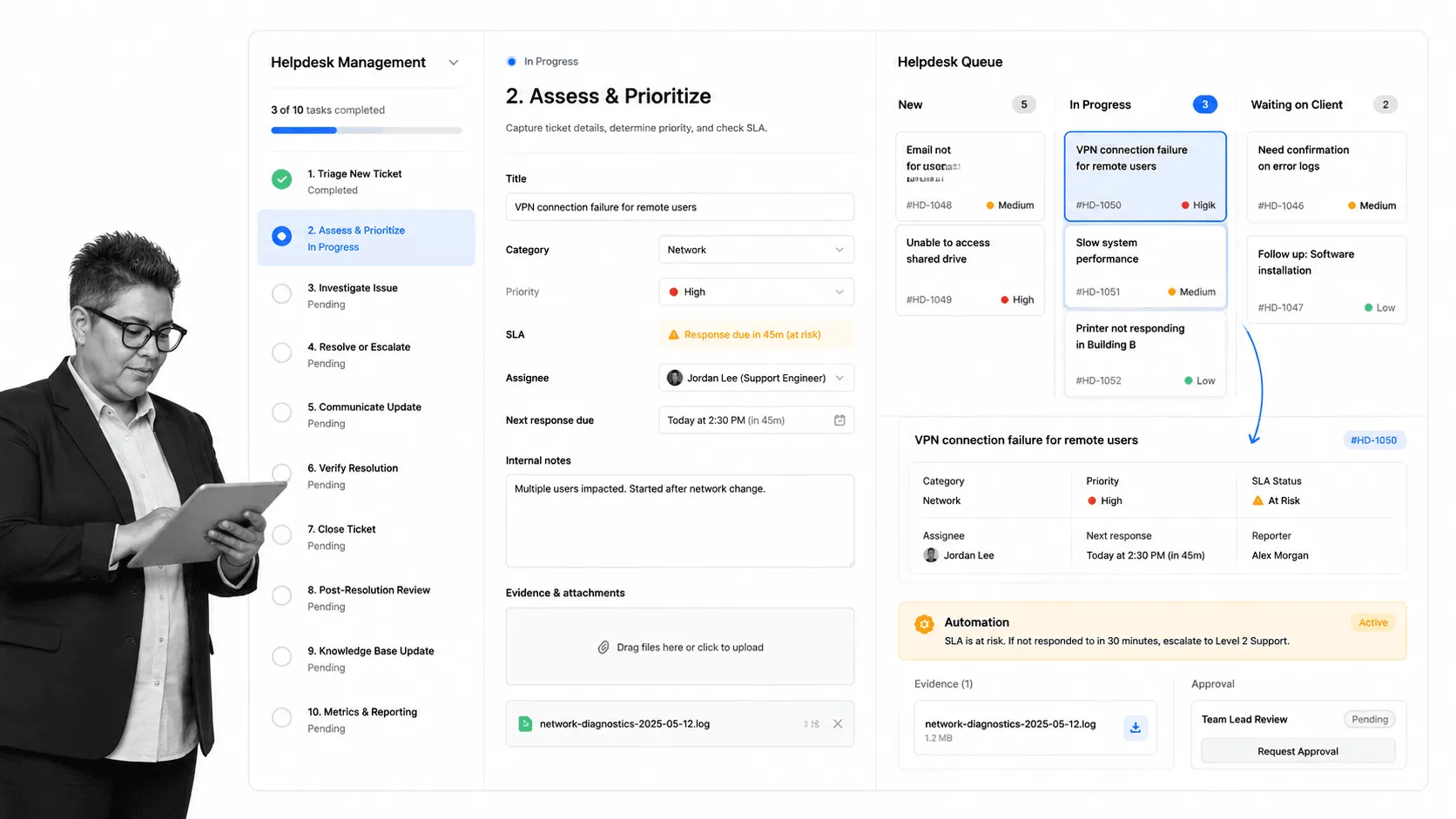
Helpdesk employees are very much like support techs, except with an extra layer of difficulty in solving the customer’s problem. By separating the problematic computer from the tech by both a phone line and the distraught client on the other end of it, you have a recipe for disaster from the word “go”.
Even if the helpdesk employee is well-versed in the art of solving technical problems, the success of the support ticket depends entirely on both their ability to convey the solution over the phone and the client’s ability to carry out their instructions.
Still, at least you can rely on the client to not do something like fail to turn on the computer for the first half hour of troubleshooting… Right?
By giving your team our helpdesk management checklist, you can ensure that clear and precise instructions are given to the customer to achieve the highest level of success. Not only this, but your employees will perform better due to the reduced stress of relying completely on their own knowledge (or how fast they can Google).
Run the Helpdesk Management checklist.
Server Maintenance
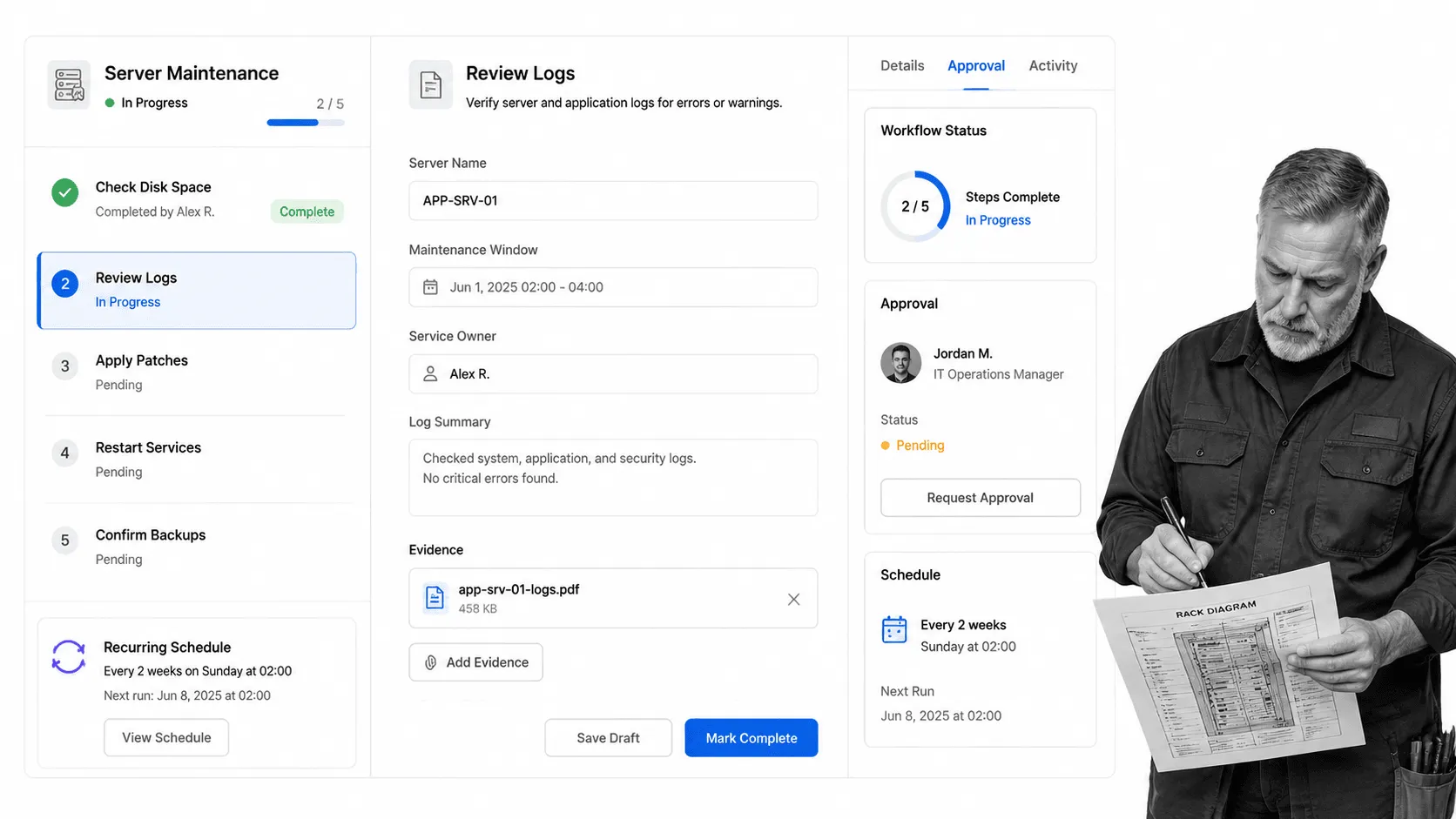
So far we’ve covered VPS setup and general server setup, but the same rules apply to keeping a server running as to stretching out a computer’s lifespan; without regular maintenance, your server is most likely going to go down and cause all manner of issues for any who are using it.
This could mean that your website loses hours or even days of traffic, at best. At worst, if your server dies and your company loses its data, the chances are that your company won’t survive the financial losses and reputational smear.
‘A business that has invested in a Server already understands the importance of uninterrupted business operations by keeping their data safe and accessible’ – Professional Computer Services
Hence, we have our server maintenance checklist; a quick and easy run through of the steps which should be carried out every week in order to keep those vital servers up and running. No matter the size or scale of your operation, running this maintenance checklist will cover your back and ensure that you’ve done everything you can to keep those servers in tip-top condition.
Run the Server Maintenance checklist.
Server Security
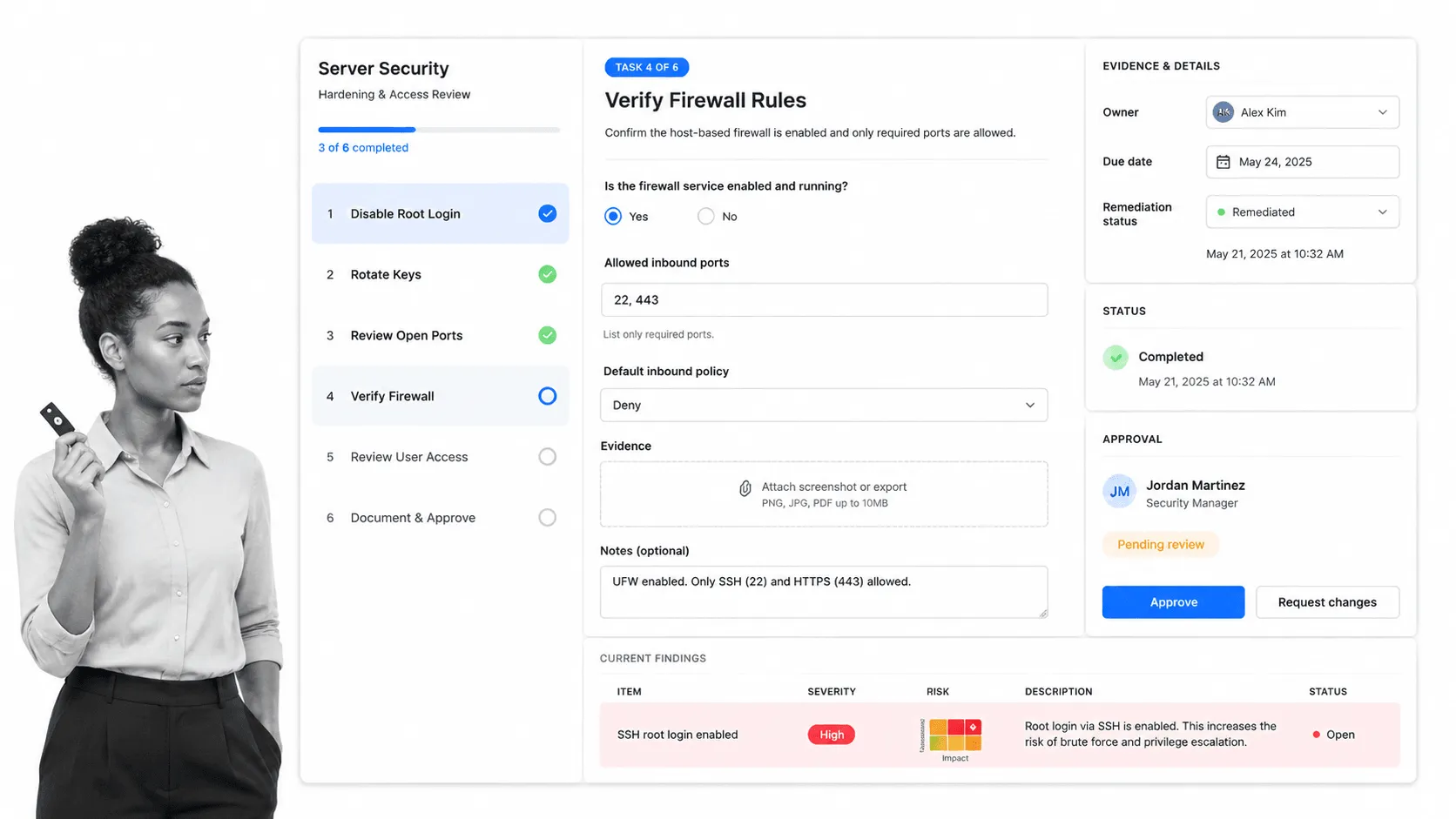
Although pretty self-evident, ensuring a solid security net hangs over your servers both at their creation and during their lifespan is an absolutely mandatory part of owning a server in the first place. Without these measures, anyone with even a limited knowledge of servers will be able to break into yours and gain access to any and all of your sensitive information.
Product information? Shared. Client personal data? On a shop-front display. Company security and funding information? You get the picture.
Any and all access points to your servers need to be locked down tight; this includes physical routes. Access control is one way to help you secure your server room and minimize the chances of attackers getting physical access to the server room. Vulnerability needs to be regularly assessed, and many, many more tasks besides.
Enter our server security checklist – a step-by-step, no-headache IT process which any employee with even a base level of server knowledge can follow. Designed for use both when setting up a new server and every time you run a security audit on an existing one, this nifty little checklist will ensure that your servers stay secure.
Run the Server Security checklist.
Information Security Incident Response
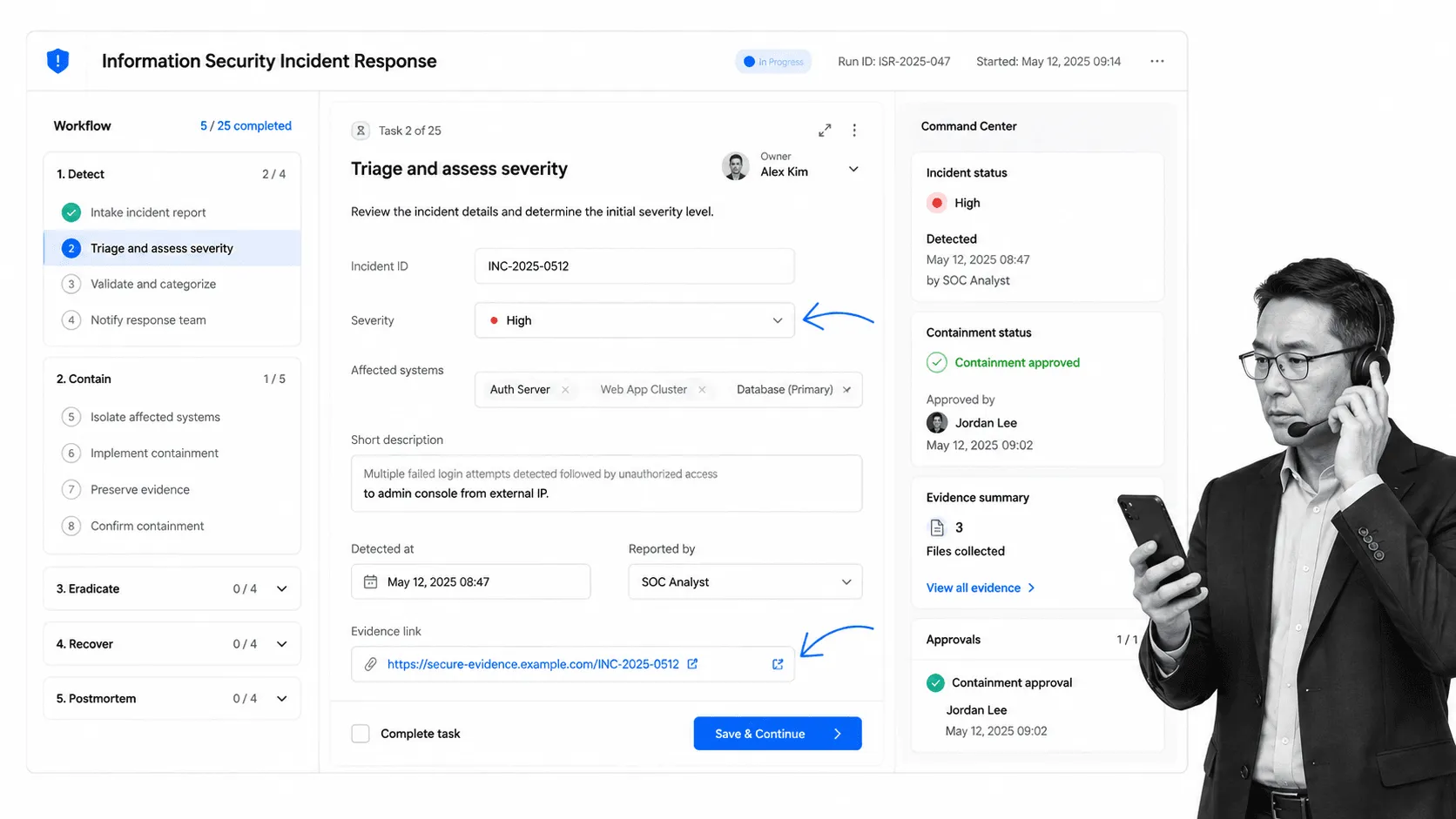
Your worst nightmare has happened, and your security has been breached. Whether it’s a colleague plugging in an infected USB device, a ransomware alert, or a suspicious login touching sensitive systems, you need to have an incident response plan locked and loaded to clamp down on the cause of the problem as soon as it’s detected.
Not only can this limit the damage done during the breach, preventing the spread of whatever is attacking your system, but it can also provide vital information for how effective your security measures are. By rapidly responding to a situation, even mediocre security can benefit by at least showing itself to be inadequate as early as possible.
Hence our information security incident response checklist. This will take you through the immediate response process; by running this as soon as an incident is detected, you can ensure that all relevant parties are notified, the attack is assessed and contained and that future attacks of the same caliber are far less likely to occur.
Think of it as emergency response and prevention combined for your network; the damage will be contained and healed, whilst future injuries of the same nature will be pro-actively dealt with.
Run the Information Security Incident Response checklist.
SQL Server Audit Checklist
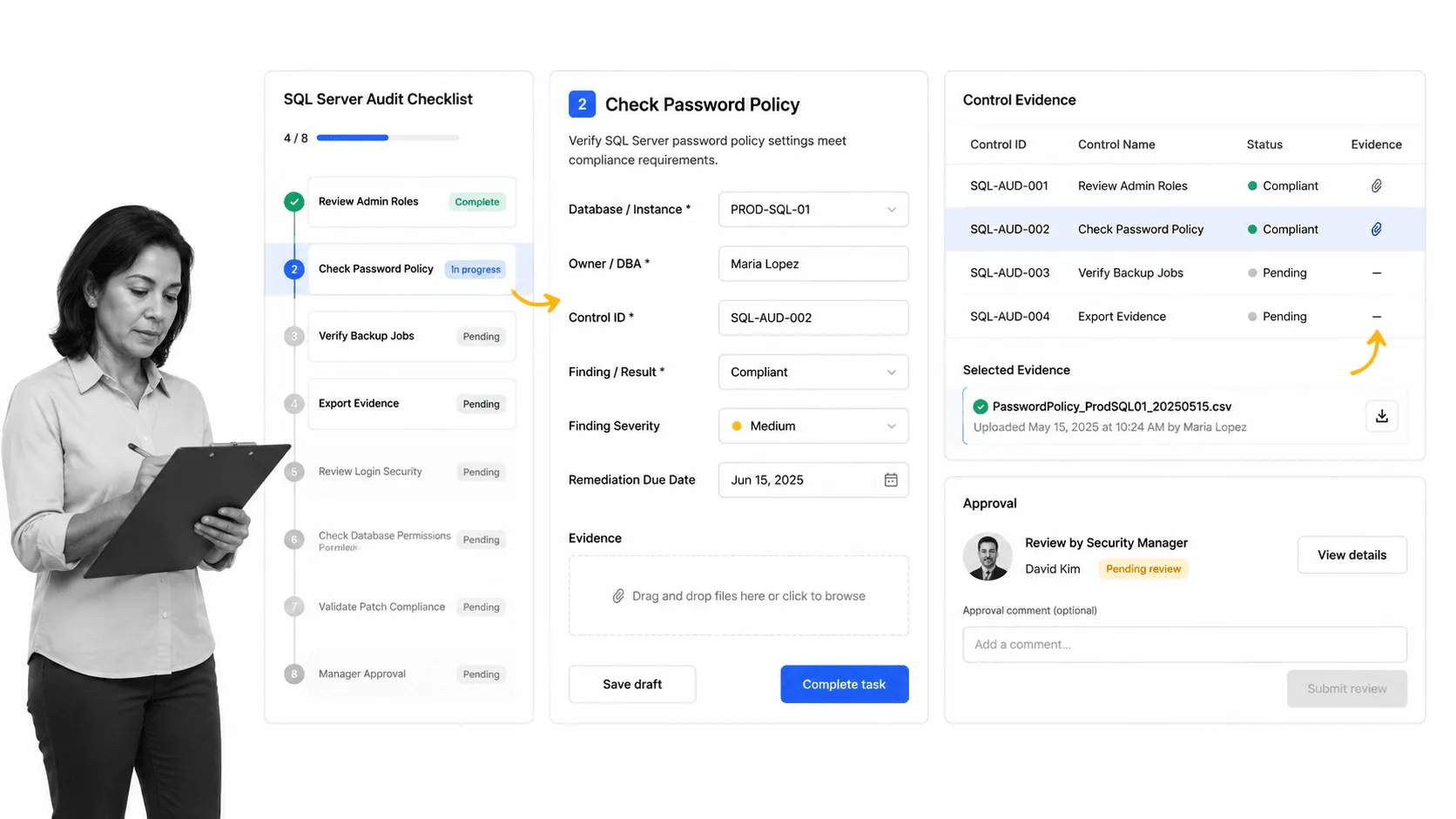
Here is where the true data nerd in us comes out, with our SQL server audit checklist! Utilizing this IT process will allow you to keep track of everything which goes on in your server; you can overview the logins (along with the strength of their passwords), users with administrative privileges and their activity, server performance, and much, much more.
By analyzing this data, you can both ensure that everything in your server is running smoothly and that nothing potentially shady is trying to slide by under your nose. For example, you can use this server audit to review whether or not those logging into your server are complying with your password policy (and whether that password is non-expiring).
In short, if you need to keep track of any aspect of your server, be it anything from the absolute basics (eg, your server is connected to the internet), to the most rigorous assessment of access to your backups, this is the checklist for you.
Run the SQL Server Audit Checklist.
If you thought this template pack was useful…
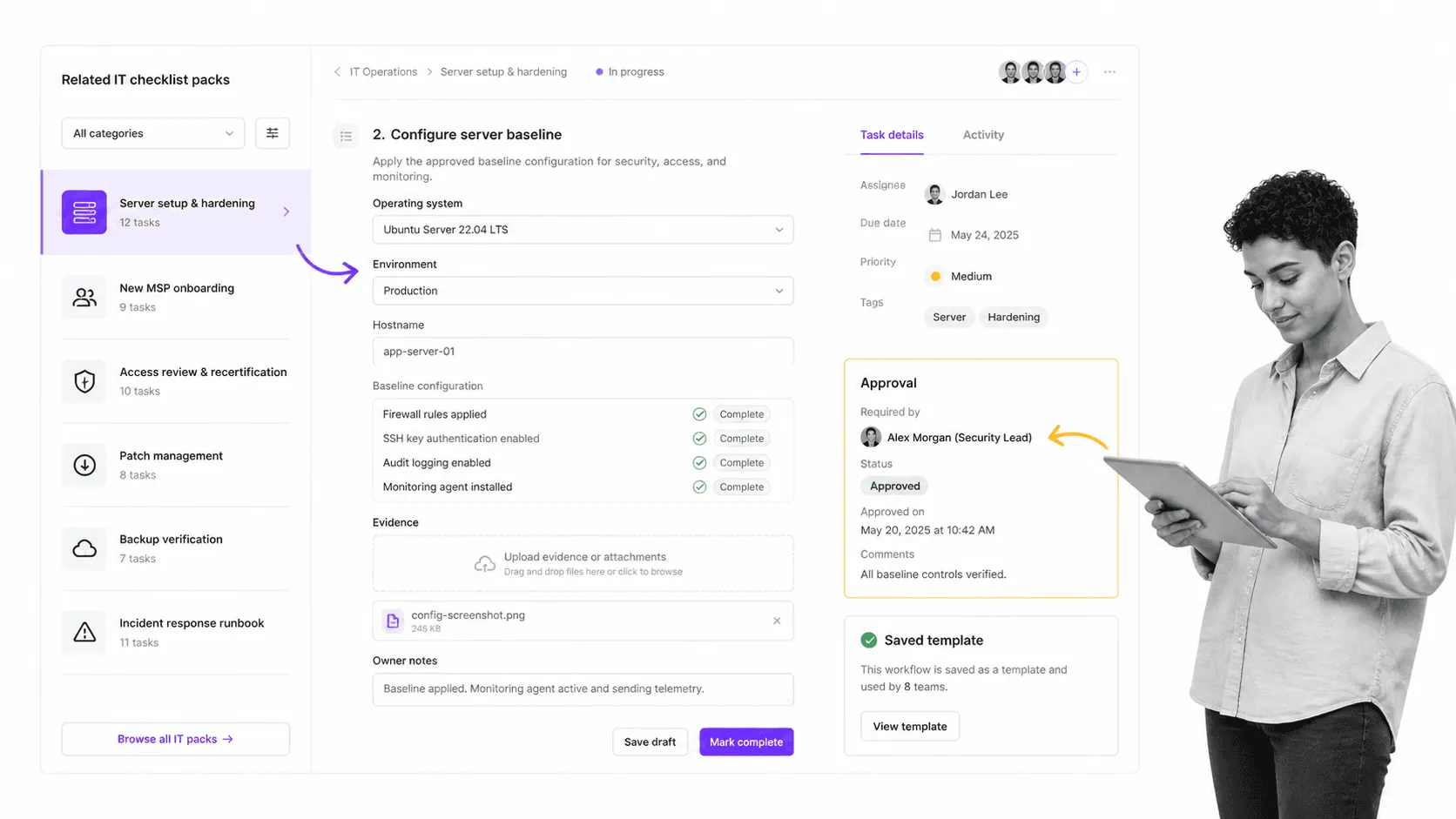
Then you might want to take a look at some of our other related packs:
- 6 Server Setup Checklists for Sysadmins
- 7 Documented Processes for IT MSPs
- 34 Linux Server Security Tips & Checklists for Sysadmins
FAQs about IT processes
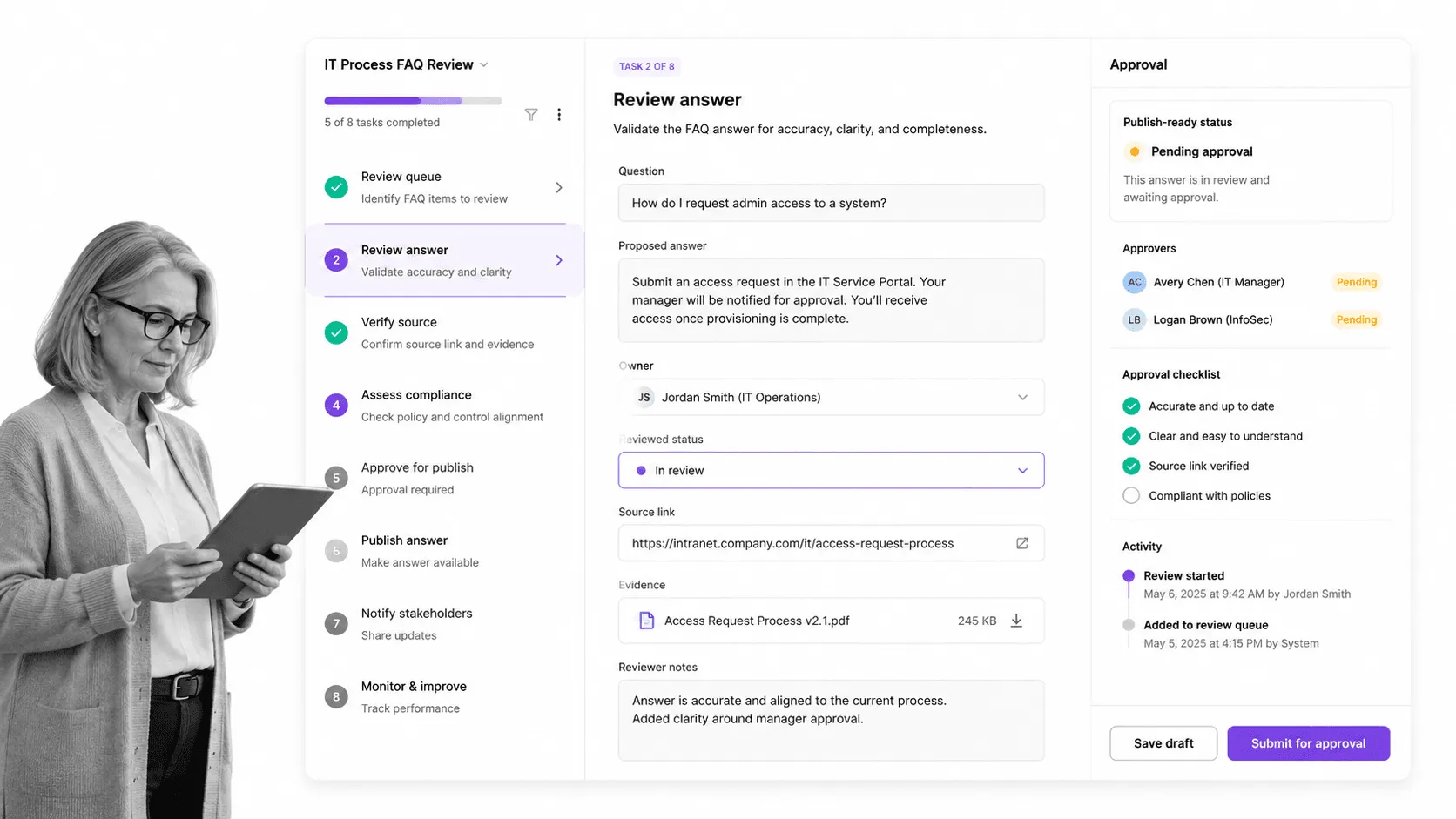
What are IT processes?
IT processes are repeatable workflows for managing technology work, such as access control, backups, incident response, server maintenance, support requests, and audits. The goal is to make important work consistent, assigned, and provable.
Which IT processes should be documented first?
Start with the processes that create the most risk when they are improvised: incident response, backups, server security, access control, and helpdesk escalation. After that, document recurring maintenance and asset management work.
How often should IT processes be reviewed?
Review critical IT processes at least quarterly, and whenever systems, vendors, regulations, or security risks change. In Process Street, reviews can be assigned, scheduled, approved, and tracked as part of the workflow record.
Have any feedback, or suggestions for new templates? Leave a comment and we’ll get right on it!
The post 12 IT Processes to Avoid Server Failures and Client Headaches first appeared on Process Street | Compliance Operations Platform.